Ever wondered where your cherished Steam games vanish to on your hard drive? Locating Steam game files is more than just curiosity; it is a fundamental skill for any PC gamer balancing a busy life, family, and a passion for interactive entertainment. Understanding where is Steam game located is crucial for troubleshooting issues, creating backups, applying mods, or simply managing your precious storage space. With US gamers regularly dedicating 10 plus hours a week to their favorite titles, and mobile gaming continuing its dominance alongside PC and console cross-play, efficient game management has never been more vital. This comprehensive guide will navigate you through the default Steam installation paths, custom library locations, and provide practical, easy-to-follow steps for finding, moving, and optimizing your game files. We will address common pain points like setup issues and performance problems, ensuring you spend less time searching and more time playing. Discover how to take control of your Steam library today and unlock a smoother, more organized gaming experience.
How do I quickly locate a Steam game's installation folder?
To quickly locate any Steam game's installation folder, simply open your Steam client, navigate to your Library, right-click on the desired game, select 'Manage,' and then choose 'Browse local files.' This action immediately opens a File Explorer window showing the game's exact location on your hard drive, whether it's in the default path or a custom library folder.
What is the default installation path for Steam games on a Windows PC?
On a Windows PC, the default installation path for Steam games is typically C:Program Files (x86)Steamsteamappscommon. This is where Steam itself is installed and where most games will reside if you did not specify a custom Steam Library Folder during the initial setup or subsequent game installations.
Can I have Steam games installed on multiple hard drives?
Yes, absolutely. Steam allows you to create multiple 'Steam Library Folders' on different hard drives or partitions. You can manage these folders through Steam's Settings under the 'Storage' tab. This flexibility lets you organize games by drive type, such as installing performance-critical titles on an SSD and larger, less-played games on an HDD.
Why would I need to access the local files of a Steam game directly?
Accessing a Steam game's local files directly is useful for several reasons, including installing mods, creating manual backups of save files, troubleshooting game-specific issues (like deleting corrupted files), or simply understanding your storage usage. It grants you direct control over the game's data, which the Steam client itself does not always expose.
How do I move a Steam game from one drive to another without reinstalling?
You can move a Steam game without reinstalling by using Steam's built-in feature. First, ensure you have a Steam Library Folder on the destination drive. Then, right-click the game in your Steam Library, go to 'Properties,' select the 'Installed Files' tab, and click 'Move Install Folder.' Choose your new desired library folder from the dropdown, and Steam will handle the transfer.
Does knowing the Steam game location help with troubleshooting?
Yes, knowing where is Steam game located is incredibly helpful for troubleshooting. If a game is crashing or misbehaving, you can navigate to its folder to check for specific log files, delete corrupted configuration files, or manually verify that certain assets are present. This knowledge empowers you to perform more advanced diagnostics beyond Steam's automatic 'Verify integrity of game files' function.
What steps should I take if I cannot find a recently installed Steam game?
If you cannot find a recently installed Steam game, first check your Steam Library and ensure it is not hidden or filtered. If it shows as installed but you cannot locate its files, use the 'Browse local files' method (Right-click game > Manage > Browse local files). If it is truly missing or not launching, try 'Verify integrity of game files' from the game's properties to force Steam to re-detect or re-download necessary components.
Ah, the digital gaming library. You have hundreds of titles, carefully curated, perhaps some free-to-play gems, others highly anticipated new releases. You launch Steam, click play, and off you go into another world. But then it hits you: you want to install a mod, backup your save files, or maybe that one game is just hogging too much space on your main drive. Suddenly, the simple act of playing becomes a quest to answer the age-old question, "Where is Steam game located?"
You are not alone in this digital scavenger hunt. For many of us, balancing a demanding job, family responsibilities, and a genuine love for gaming means every minute counts. We want relaxation and fun, not technical headaches. With 87 percent of US gamers regularly diving into their virtual worlds, often for 10 or more hours a week, efficiency is key. This guide is your trusted friend, here to demystify Steam's file structure, helping you optimize your gaming experience without cutting into your precious unwind time. We will cover everything from default locations to managing multiple library folders, ensuring you are empowered to take control of your digital gaming life.
Where is Steam game located by default on a Windows PC?
For most Windows users, Steam games reside in a predictable spot unless you have specifically changed the installation path. The default Steam installation directory, which houses the Steam client itself and often your first Steam Library Folder, is usually found within your Program Files folder. Specifically, it typically follows this structure: C:Program Files (x86)Steamsteamappscommon. Inside the 'common' folder, you will find individual folders for each of your installed games.
This location is established during Steam's initial setup. If you just clicked through the prompts without customization, this is almost certainly where your Steam client and its associated game files will be. Knowing this default path is a critical first step for any troubleshooting, manual file manipulation, or understanding your system's storage use.
How do I find a Steam game's location if it is installed elsewhere?
Even if you have multiple hard drives or custom library folders, Steam makes it incredibly easy to pinpoint any game's exact location directly from the client. This is the most reliable method for finding where is Steam game located, regardless of your setup.
- Open your Steam client.
- Navigate to your Library.
- Right-click on the specific game you want to locate.
- Hover over 'Manage' in the context menu.
- Select 'Browse local files'.
This action will immediately open a File Explorer window directly to the game's installation folder. This powerful feature saves you from digging through multiple drives and folders, making tasks like modding or backing up saves incredibly straightforward.
Can I change where Steam games are installed?
Absolutely, and this is a common and highly recommended practice for many gamers, especially those juggling high-performance games and limited SSD space. Steam allows you to create multiple 'Steam Library Folders' on different drives or partitions. This flexibility is vital for managing large game libraries and optimizing performance, as fast SSDs are best for frequently played titles, while larger HDDs can store less demanding or archival games.
To set up a new Steam Library Folder:
- Open Steam.
- Go to 'Steam' in the top-left corner, then 'Settings'.
- In the 'Settings' window, select 'Storage'.
- Click the '+' icon next to your existing drive list.
- Choose a new drive or create a new folder on an existing drive.
- Click 'Add' to establish the new library folder.
Once added, when you go to install a new game, Steam will give you the option to choose which library folder (and thus, which drive) you want to install it to. This greatly enhances your ability to manage where is Steam game located on your system.
Why would I need to know where my Steam games are located?
Understanding where your Steam games are located is more than just a technical detail; it is a gateway to a deeper, more customized, and problem-free gaming experience. Busy gamers, particularly those balancing life and hobbies, benefit immensely from this knowledge for several practical reasons:
- Modding: Many popular games, especially indie darlings or classic titles, have vibrant modding communities. Installing mods often requires dropping files directly into the game's installation folder.
- Backups: Saving your game progress, especially for single-player RPGs or games with extensive custom settings, is crucial. While Steam Cloud handles some saves, many game saves are stored locally. Knowing the game's location helps you back up these critical files manually.
- Troubleshooting: When a game crashes, fails to launch, or exhibits unusual behavior, accessing its local files can be the first step in diagnosing the issue. You might need to delete corrupted files, verify file integrity (which Steam does automatically, but knowing where the files are helps), or manually update certain components.
- Performance Optimization: Moving games from a slow HDD to a fast SSD can dramatically improve loading times and overall performance. Knowing where your games are located allows you to strategize your storage.
- Freeing Up Space: Games are getting larger, sometimes exceeding 100 GB. Quickly locating the biggest culprits allows you to uninstall them or move them to a less critical drive when space is tight. This is a common pain point for gamers trying to keep their systems lean.
In essence, knowing where is Steam game located empowers you to be a more effective, self-sufficient PC gamer, enhancing everything from customization to system maintenance.
What is a Steam Library Folder and how do I manage it?
A Steam Library Folder is essentially a designated directory on your hard drive where Steam installs and stores your game files. You can have multiple Steam Library Folders across different drives or partitions, which is incredibly useful for gamers with large collections or those who want to optimize performance by utilizing faster storage for specific games.
To manage your Steam Library Folders:
- Open Steam and go to 'Steam' > 'Settings' > 'Storage'.
- Here, you will see a list of all your active Steam Library Folders. Each folder shows the drive it is on, the number of games it contains, and the available space.
- From this window, you can:
- Set a default installation drive: Click the 'Make Default' button next to a folder to designate it as the primary location for new game installations.
- Add a new library folder: Click the '+' icon to create a new folder on another drive (as described in a previous section).
- Remove a library folder: If a folder is empty or you no longer use it, you can click the three dots next to it and select 'Remove folder'. Be careful not to remove a folder containing installed games unless you intend to uninstall them.
- Move games between folders: Select a game, click 'Move' and choose a different library folder from the dropdown. This is a fantastic way to relocate games without reinstalling them.
Effective management of your Steam Library Folders ensures you are always aware of where is Steam game located, contributing to a well-organized and high-performing gaming setup.
How do I move an installed Steam game to a different drive or folder?
Moving a Steam game to a new location, perhaps from a full HDD to a speedy new SSD, is a common need for performance-conscious gamers. Fortunately, Steam has a built-in function to handle this seamlessly, preventing the need for tedious re-downloads or manual file transfers that could corrupt game data.
Here are the steps to move an installed Steam game:
- Ensure the destination library folder exists: Before you move a game, make sure you have already set up the target Steam Library Folder on the desired drive via Steam's Settings > Storage menu. (Refer to "Can I change where Steam games are installed?" above).
- Access the game's properties: In your Steam Library, right-click on the game you wish to move.
- Select 'Properties': From the context menu, choose 'Properties'.
- Go to the 'Local Files' tab: In the game's Properties window, navigate to the 'Local Files' tab.
- Click 'Move Install Folder': You will see a button labeled 'Move Install Folder...'. Click this.
- Choose the new location: A dropdown menu will appear, listing all your established Steam Library Folders. Select the desired destination drive/folder.
- Confirm the move: Click 'Move'. Steam will then transfer all the game files to the new location. The time this takes will depend on the game's size and your drives' speeds.
This process ensures that Steam's registry entries and file paths are correctly updated, so the game launches without issues from its new home. It is a lifesaver for managing where is Steam game located for optimal performance.
What happens if I accidentally delete my Steam game files?
Accidentally deleting game files can feel like a disaster, especially for large games. However, Steam is quite robust in handling such scenarios. If you delete game files directly from File Explorer (e.g., from the 'common' folder) without uninstalling through Steam, the Steam client will still think the game is installed.
When you try to launch it, Steam will detect missing files and likely initiate a verification process or prompt you to install the game again. In most cases, it will simply re-download the necessary missing components. This is why using the 'Browse local files' feature is key – it confirms where is Steam game located, so you know exactly what you are deleting or modifying.
To fix this:
- Right-click the game in your Steam Library.
- Select 'Properties'.
- Go to the 'Installed Files' tab.
- Click 'Verify integrity of game files...'.
Steam will scan the existing files and download any that are missing or corrupted. This process effectively repairs your accidental deletion.
How can I optimize game storage and performance with Steam?
Optimizing storage and performance is crucial for the modern gamer, especially those balancing budgets and demanding game files. Knowing where is Steam game located is the first step, then applying these strategies:
- Utilize multiple drives: Install frequently played, performance-critical games (like competitive FPS titles or graphically intensive RPGs) on a fast Solid State Drive (SSD). Store larger, less frequently played, or older titles on a Hard Disk Drive (HDD) to save precious SSD space.
- Regularly manage your Library: Periodically review your Steam Library via 'Steam' > 'Settings' > 'Storage'. Identify games you no longer play and uninstall them to free up space. Consider moving games between drives as your priorities change.
- Monitor disk space: Keep an eye on the free space on your drives. Running a drive too full can impact system performance, not just game loading times. Aim to keep at least 15-20% of your drive free.
- Consider external drives: For very large collections, or if you switch between computers (e.g., a desktop and a gaming laptop), an external SSD can serve as a portable Steam Library. Ensure it is a fast USB 3.0 or higher connection.
- Archive less played games: Instead of uninstalling entirely, some gamers compress less-played game folders to save space, but this requires manual work and decompiling when you want to play again. Moving to an HDD is usually more practical.
By actively managing where is Steam game located and how it is stored, you can significantly enhance your overall gaming experience, reduce frustration, and ensure your system runs smoothly, even with the latest demanding titles.
Are Steam game locations different on Mac or Linux?
Yes, while the core concept of a Steam Library Folder remains the same, the default paths and underlying file system structures are different on macOS and Linux compared to Windows. Understanding these distinctions is important for cross-platform gamers or those running Steam on different operating systems.
- macOS: On a Mac, Steam games are typically located at: ~/Library/Application Support/Steam/steamapps/common. The '~' denotes your user's home directory. Note that the 'Library' folder is often hidden by default on macOS, so you might need to use 'Go' > 'Go to Folder...' in Finder and type in the path.
- Linux (Steam Play/Proton): For Linux users, especially those leveraging Steam Play (Proton) for Windows games, the path is usually: ~/.steam/steam/steamapps/common. Again, the '~' refers to your home directory, and the '.steam' folder is a hidden directory. Native Linux games will also reside in similar 'steamapps/common' subdirectories.
Regardless of the operating system, the 'Browse local files' method (Right-click game > Manage > Browse local files) within the Steam client is always the easiest and most reliable way to find where is Steam game located on your specific machine, bypassing any complexities of the underlying file system.
How do I verify game file integrity if I suspect issues?
Sometimes games act up: crashes, missing textures, strange bugs. Before you reinstall, knowing where is Steam game located is useful, but verifying file integrity is your first and best troubleshooting step directly within Steam. This process checks all your installed game files against the official versions on Steam's servers and replaces any that are missing, corrupted, or have been modified.
To verify game file integrity:
- Open your Steam client and go to your Library.
- Right-click on the game that is causing issues.
- Select 'Properties' from the context menu.
- Go to the 'Installed Files' tab.
- Click the 'Verify integrity of game files...' button.
Steam will then run a scan, which can take a few minutes depending on the game's size and your drive speed. If any discrepancies are found, Steam will automatically download and replace the problematic files. This often resolves a wide range of game-breaking issues without the need for a full re-download, saving precious time for busy gamers.
FAQ
Q: Can I install Steam games on a network drive?
A: While technically possible with some workarounds, Steam officially does not support installing games on network drives (NAS). It can lead to severe performance issues, instability, and game corruption due to latency and permissions. It is strongly recommended to install games on local internal or external drives.
Q: What is the 'steamapps' folder for?
A: The 'steamapps' folder is a critical directory within your Steam installation. It contains all your Steam Library Folders, including the 'common' folder (where game files reside), 'downloading' (for games in progress), 'sourcemods' (for Source engine mods), and appmanifest files which tell Steam what games are installed and where.
Q: How do I find old save files after reinstalling a game?
A: Game save locations vary. Many modern games use Steam Cloud, but others store saves in your Documents folder, AppData (hidden folder), or directly within the game's installation folder. If you backed up your game folder or user profile before reinstalling, you might find them there. Websites like PCGamingWiki often list specific save locations for games.
Q: Can I have two separate Steam installations on one computer?
A: No, Steam is designed to have only one client installation per operating system. However, you can create multiple Steam Library Folders on different drives from that single client, allowing you to effectively spread your game installations across various locations.
Q: What do those 'appmanifest_XXXXXX.acf' files do?
A: These are application manifest files. Each one corresponds to a specific game (the XXXXXX is the game's app ID). They tell Steam crucial information about the game, such as its installation path, current status (installed, updated, etc.), and the Steam Library Folder it belongs to. Do not delete them unless you are troubleshooting a specific issue and know what you are doing.
Q: Why is my game not launching even after verifying files?
A: If verifying files does not work, the issue might not be corrupted game files. Consider updating graphics drivers, checking your antivirus/firewall settings (they can sometimes block games), running the game as administrator, or checking for specific game patch notes or community forums for known issues.
Q: How do I recover a deleted Steam Library Folder?
A: If you accidentally deleted an entire Steam Library Folder, the games within it are gone. Your best bet is to recreate the library folder in Steam's settings and then reinstall the games you want back. If you only deleted the folder and not the games via Steam, they will appear uninstalled in your library, allowing for a fresh download.
In the vast world of PC gaming, understanding where is Steam game located is a fundamental skill that empowers you. It is not just about troubleshooting; it is about taking control of your digital assets, optimizing your system, and ensuring your precious gaming time is spent playing, not searching. We hope this guide has armed you with the knowledge and tools to confidently manage your Steam library, allowing you to dive deeper into those immersive worlds or connect with friends in your favorite social games, free from technical woes.
What is your biggest gaming challenge when it comes to managing your PC setup? Comment below and share your tips!
Locating Steam game installation folders for troubleshooting and modding. Understanding default and custom Steam Library paths. Steps to move Steam games between drives efficiently. Verifying game file integrity via the Steam client. Optimizing storage for better gaming performance.
35

:strip_icc():watermark(kly-media-production/assets/images/watermarks/liputan6/watermark-color-landscape-new.png,1180,20,0)/kly-media-production/medias/5535685/original/040139800_1774087096-Steam_Spring_Sale_2026_01.jpeg)

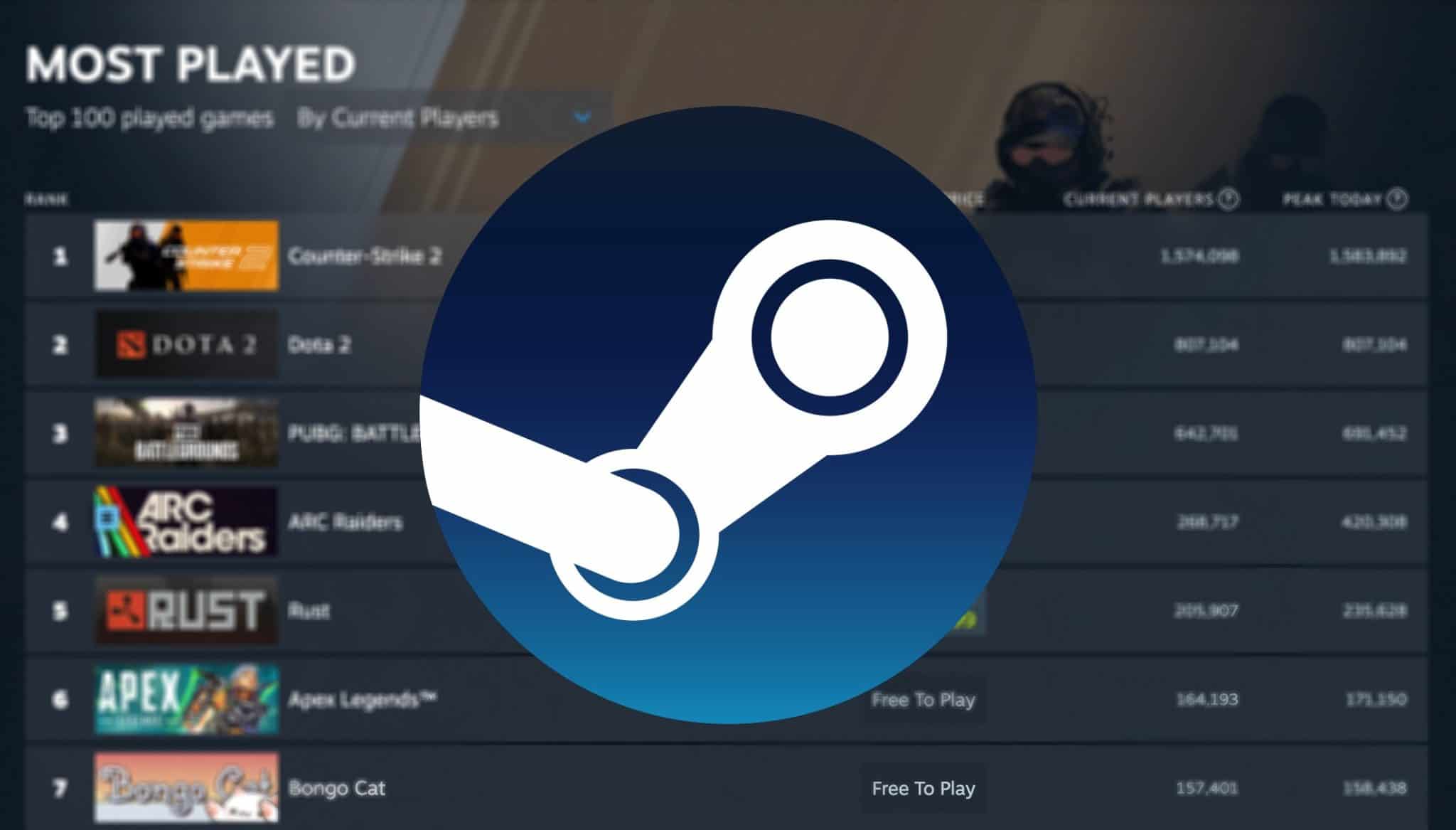
Steam Sales 2026 Calendar Full Dates Best CD Key Deals AllKeyShop Com All Steam Events 2026. Steam Reveals Full 2026 Schedule For Fests And Seasonal Sales GamerBraves Steam Sale Fest Schedule Article Image 1 . The Most Played Games On Steam For 2026 So Far Cheat Code Central Most Played Games Steam 2026 2048x1167 . Steam Spring Sale 2026 Dimulai Banyak Game PC Dan DLC Dipangkas Harga 040139800 1774087096 Steam Spring Sale 2026 01 . Kalender Lengkap Event Steam 2026 Diskon Besar Dan Festival Game Favorit Steam Events 2 Q82 W2560 H 74ce0.webp





Steam March 2026 Client Update Adds Hardware Specs To User Reviews Steam Client Mar 2026 1536x864 . Steam Next Fest 2026 And Beyond All The Dates Details And Everything. Valve Announces Steam Hardware Lineup Coming In 2026 Here S Steam Hardware Splash . Steam Starts 2026 With 4 New FREE Games No Strings Attached Steam Logo In Forest . Steam Adds 5 New Free Games In March 2026 No Strings Attached Steam With Games


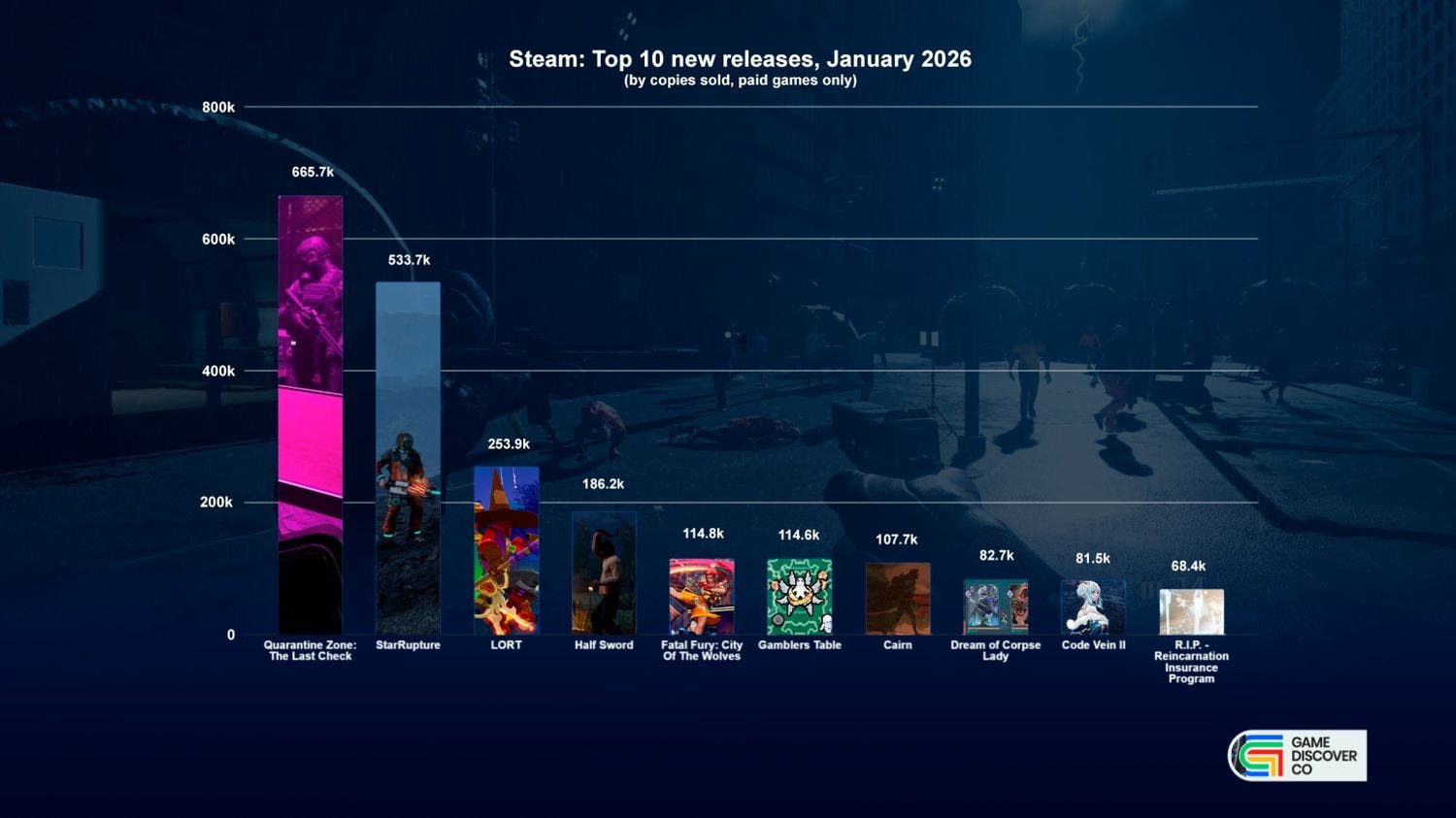
Steam Drops Free Download For Gorgeous New 2026 Game . Steam 2026 4 New Free To Play Games Available Now AllKeyShop Com Showcase Steam Free Games 2026 Indie F2p Card Roguelike Sci Fi. Here Are The Steam Sale Dates For First Half Of 2026 Valve Offers 1864305984 . Best Steam Horror Games To Play 2026 Edition LRDev Games 1.Best RPG Games On Steam Complete Guide.webp. January 2026 S Top Selling New Steam Games Revealed 08418405 04a2 47eb B48b 1500x843



The Top 2026 Games By Steam Wishlists By Rhys Elliott Fc2aa87f 2277 4294 9e7b 1920x1080 . Top 100 Most Followed Steam Games With A 2026 Release Date GameGrin Image 2026 01 11 193400630 . Steam Next Fest 2026 And Beyond All The Dates Details And Everything. Steam S Free Weekend This March 2026 Lets You Try A Popular Base 1920xt1080 . Nuova Steam Machine 2026 Giochi Compatibili E Data Di Nuova Steam Machine 2026.webp



Top 100 Most Followed Steam Games With A 2026 Release Date GameGrin Image 2026 01 11 191942694 . 10 Most Wishlisted Strategy Games On Steam In 2026 Top 10 Most Wishlisted Strategy Games On Steam In 2026 . Top Rated Steam Games Of 2026 200xr300 . Top 100 Most Followed Steam Games With A 2026 Release Date GameGrin Image 2026 01 11 195034585 . Best Steam Games Of 2026 Steambase Public




Steam Sale 2026 Key Dates You Need To Know LevelUpTalk Steam Sale Schedule 2026 08 27 2025 7c35051e 2c22 4093 96f1. Top 100 Most Followed Steam Games With A 2026 Release Date GameGrin Image 2026 01 11 195335766 . Top 100 Most Followed Steam Games With A 2026 Release Date GameGrin Image 2026 01 11 195809549 . Top 100 Most Followed Steam Games With A 2026 Release Date GameGrin Image 2026 01 11 192003070 . Top 100 Most Followed Steam Games With A 2026 Release Date GameGrin Image 2026 01 11 195824230




The Best Steam Deck Games Worth Playing In 2026 GamesRadar . The Best Free Steam Games For 2026 The Absolute Best Steam Games For 2026 Vg5m.640 . Steam Sales 2026 Here S The Schedule For The First Half Of The Year 912cr476 . Steampunk S Grand Comeback In Gaming Must Play Titles Of 2026 Steampunk Games 2026 . Top 100 Most Followed Steam Games With A 2026 Release Date GameGrin Image 2026 01 11 192034799