Unlocking seamless transparency for your custom Roblox assets created in Blender can be a real headache, especially when you are a busy gamer balancing work and life. This comprehensive guide is designed to cut through the confusion, providing clear, actionable steps to master Blender Roblox transparent textures. Many gamers, averaging over 10 hours a week, want to create unique experiences or characters but often get stuck with transparency issues that break immersion. We'll dive into everything from correct alpha channel setup in Blender to proper import settings in Roblox Studio, ensuring your creations look exactly as intended. This resource addresses common pain points like unexpected solid backgrounds, sorting glitches, and material misconfigurations. Learn the tips and tricks for efficient workflows, optimize performance, and ensure your custom models stand out without compromise. Stop wasting precious gaming time troubleshooting and start building awesome transparent assets today, enhancing your creative journey on Roblox.
How To Export Transparent Textures from Blender to Roblox?
Exporting transparent textures from Blender to Roblox involves ensuring your texture image, typically a PNG, has a proper alpha channel defined. In Blender, for your material, set the 'Blend Mode' to 'Alpha Hashed' or 'Alpha Blend'. During FBX export, select 'Copy' for 'Path Mode' under 'Textures' and check 'Embed Textures' to include the transparent PNG directly in the FBX file. This streamlines the import process into Roblox Studio, preventing common transparency failures.
Why Is My Blender Transparency Not Working In Roblox Studio?
If your Blender transparency is not working in Roblox Studio, it is likely due to an incorrectly configured alpha channel in your texture, a mismatch in material settings between Blender and Roblox, or issues during the FBX export/import process. Ensure your texture is a 32-bit PNG, your Blender material has 'Alpha Blend' enabled, and you embed textures when exporting as FBX. In Roblox Studio, confirm the 'TextureID' is correctly applied to the MeshPart and its 'Transparency' property is set to 0, allowing the texture's alpha to control visibility.
What Are The Best Blender Settings For Transparent Models To Roblox?
For transparent models destined for Roblox, use a Principled BSDF shader in Blender, connecting your image texture's 'Alpha' output to the shader's 'Alpha' input. Set the material's 'Blend Mode' to 'Alpha Hashed' or 'Alpha Blend'. When exporting to FBX, ensure 'Path Mode' for textures is 'Copy' and 'Embed Textures' is checked. Always save your transparent textures as PNG files with an alpha channel. These settings optimize for Roblox Studio's rendering capabilities and minimize import errors.
How To Fix Transparency Glitches When Importing From Blender To Roblox?
To fix transparency glitches when importing from Blender to Roblox, first, verify your texture's alpha channel is clean and correctly saved as a PNG. In Blender, ensure your material's blend mode is set to 'Alpha Hashed' or 'Alpha Blend'. During FBX export, embed textures. In Roblox Studio, confirm the MeshPart's 'TextureID' is correctly assigned and its 'Transparency' property is 0. For PBR materials, ensure your 'ColorMap' in 'SurfaceAppearance' has the alpha channel and try adjusting 'Fidelity' if sorting issues persist.
Can I Use Alpha Channel In Blender For Roblox Materials?
Yes, you can absolutely use an alpha channel in Blender for Roblox materials. The alpha channel, typically part of a PNG image, defines the transparent areas of your texture. In Blender, connect the 'Alpha' output of your Image Texture node to the 'Alpha' input of your Principled BSDF shader. Then, set your material's 'Blend Mode' to 'Alpha Hashed' or 'Alpha Blend' in the Material Properties tab to correctly preview and export this transparency data for use in Roblox Studio.
How Do I Import A Partially Transparent Blender Model Into Roblox?
To import a partially transparent Blender model into Roblox, ensure your texture (a PNG) includes the partial transparency in its alpha channel. In Blender, connect the texture's alpha output to the Principled BSDF's alpha input and set the material's blend mode to 'Alpha Blend'. Export as FBX, embedding the textures. In Roblox Studio, import the FBX, assign the texture ID to the MeshPart, and make sure the MeshPart's 'Transparency' property is set to 0. Roblox will then interpret the partial transparency from your texture's alpha channel.
What File Formats Support Transparency from Blender to Roblox?
For transparency from Blender to Roblox, the primary file format you will use is FBX for the 3D model, which can embed your textures. For the textures themselves, PNG is the universally recommended image format because it natively supports an alpha channel, crucial for defining transparent areas. While other image formats exist, PNG offers the best compatibility and quality for transparency when transferring assets between Blender and Roblox Studio.
Hey fellow gamers! Ever poured hours into crafting that perfect custom model in Blender for your Roblox experience, only to see its transparency completely disappear or glitch out when you import it? You are definitely not alone. It is a common source of frustration for many of us, especially when we are balancing demanding jobs, family life, and our precious gaming time. We want to unwind, create something cool, or connect with friends in games like Roblox, not spend hours troubleshooting technical headaches. Gaming is a significant part of life for many US adults, with 87% of gamers regularly playing, often for 10+ hours a week, and creative platforms like Roblox are booming. Yet, these technical hurdles can quickly turn fun into frustration.
This guide is your direct solution. We know you value your time and want clear, actionable advice that works. No jargon, no hype, just practical steps to ensure your Blender creations, especially those with intricate transparency, shine exactly as you envision them in Roblox. We will cover everything from the fundamental principles of transparency in 3D modeling to the precise export and import settings that make all the difference. Get ready to banish those opaque woes and bring your transparent visions to life.
Why Do My Blender Transparent Textures Not Work in Roblox?
The most common reason your transparent textures from Blender might fail in Roblox is usually related to how the alpha channel is handled during export and import. Transparency is typically controlled by an alpha channel within your image file (like a PNG). If this channel is not correctly set up in Blender or misinterpreted by Roblox Studio, your texture will appear fully opaque, or it will have an unexpected solid background. This often stems from incorrect material settings in Blender, improper image format choices, or overlooking crucial settings during the import process into Roblox Studio. Many gamers assume a transparent image is enough, but Blender and Roblox need to be told how to interpret that transparency consistently.
How Do I Prepare My Blender Model and Texture for Transparency in Roblox?
Preparing your Blender model and texture correctly is the foundation for seamless transparency in Roblox. First, ensure your texture image, typically a PNG, has an actual alpha channel that defines the transparent areas. In Blender, for your material, set the 'Blend Mode' to 'Alpha Hashed' or 'Alpha Blend' under the 'Settings' panel in the Material Properties tab, especially if you are using Eevee for preview. Connect your image texture's 'Alpha' output to the 'Alpha' input of your Principled BSDF shader. For performance, keep your texture resolutions sensible. For instance, a 1024x1024 PNG with a clean alpha channel is often a good balance for detailed assets without bogging down a player's device, a common concern for the mobile-dominant gaming trend where optimization is key.
What Are the Best Export Settings for Transparent Models from Blender to Roblox?
When exporting your model from Blender, the FBX format (.fbx) is generally the most reliable for Roblox. Crucially, in the FBX export settings dialog, under 'Path Mode' for 'Textures', select 'Copy' and check 'Embed Textures'. This ensures that your transparent PNG texture is packaged directly within the FBX file, reducing the chances of texture linking errors or transparency issues upon import. Also, make sure 'Apply Modifiers' is checked to bake down any transparency-affecting modifiers. Remember to select only the objects you intend to export, simplifying the FBX file and making it easier for Roblox Studio to process. Overly complex exports with unnecessary elements can sometimes introduce unforeseen issues.
How Do I Import a Transparent Blender Asset into Roblox Studio?
Once you have your correctly exported FBX file, importing it into Roblox Studio is straightforward. In Roblox Studio, navigate to the 'Game Explorer' and right-click to 'Import 3D'. Select your FBX file. During the import dialog, ensure that 'Import with Location' is unchecked if you plan to place the asset manually. After importing, your model will appear in your workspace. Now, select the MeshPart or Union, and in its 'Properties' window, locate the 'TextureID' property. If your texture was embedded, it might already be applied. If not, upload your transparent PNG image separately to Roblox (via the 'Asset Manager') and paste its ID into the 'TextureID' field. Crucially, set the 'Transparency' property to '0' (meaning fully opaque) as the alpha channel in your texture controls the transparency, not this property directly. Also, ensure the 'Material' property is set to a suitable option like 'Plastic' or 'SmoothPlastic' for basic meshes, or 'SurfaceAppearance' if you are using PBR textures.
What are Common Alpha Channel Issues and How Can I Fix Them?
Common alpha channel issues often stem from overlooked details. One frequent problem is forgetting to actually *save* your image with an alpha channel in Blender. Always ensure your image editor (or Blender's image save settings) is configured to save a 32-bit PNG (RGB + Alpha). Another issue is having an alpha channel that is too 'soft' or 'aliased,' which can cause fuzzy edges in Roblox. You can fix this by ensuring your alpha mask is sharp. Sometimes, importing an image into Roblox Studio without it being fully loaded or cached can cause temporary transparency glitches; simply wait a moment or re-upload. Always double-check your material nodes in Blender; ensure the 'Alpha' output of your Image Texture node is correctly plugged into the 'Alpha' input of your Principled BSDF shader. If your material preview in Blender looks correct but not in Roblox, the issue is almost certainly in your export or Roblox Studio import settings.
Can I Use PBR Textures with Transparency in Roblox?
Absolutely, PBR (Physically Based Rendering) textures can definitely work with transparency in Roblox, and they look fantastic! Roblox's 'SurfaceAppearance' object, which leverages PBR, supports an alpha channel in its 'ColorMap' texture. To achieve this, export your Blender model and textures (ColorMap, NormalMap, RoughnessMap, MetalnessMap) separately. For transparency, ensure your ColorMap (often called Albedo or Base Color) is a PNG with a proper alpha channel. In Roblox Studio, add a 'SurfaceAppearance' object as a child of your MeshPart. Upload your PBR textures via the 'Asset Manager' and assign their respective IDs to the 'ColorMap', 'NormalMap', 'RoughnessMap', and 'MetalnessMap' properties within the SurfaceAppearance object. Roblox Studio will then correctly interpret the alpha in your ColorMap for transparency, providing a much richer visual experience. This feature is a game-changer for creating realistic materials with intricate transparent elements, a definite advantage in today's visually competitive gaming landscape where players expect high fidelity.
How Can I Test Transparency Effectively in Roblox Studio?
Testing transparency effectively in Roblox Studio involves a few key steps to ensure your assets appear as intended across various lighting conditions and devices. First, always test your asset in a clean, default Roblox Studio scene with simple lighting to isolate any transparency issues. Place your transparent object against different background colors and textures to see how the transparency renders. Pay close attention to any 'sorting issues' where parts of your transparent object appear incorrectly behind or in front of other transparent parts or even opaque objects. Use the 'Fidelity' property on 'SurfaceAppearance' (if using PBR) to adjust rendering quality and check for differences. Finally, and most importantly, test your experience on different platforms – PC, mobile, and even console if applicable. Mobile devices, prevalent among US gamers, might display transparency slightly differently due to varying graphics APIs, so cross-platform testing is crucial for a consistent player experience.
Are There Alternatives to Transparent Textures for Effects in Roblox?
While transparent textures are powerful, Roblox offers other tools for various transparent effects. For simple, uniform transparency, you can directly adjust the 'Transparency' property of a Part or MeshPart. This is great for glass or clear barriers where the entire object needs to be uniformly translucent. For particle effects like smoke, fire, or sparks, Roblox's 'ParticleEmitter' is incredibly versatile and allows for dynamic, animated transparency. For volumetric effects or complex atmospheric elements, consider using 'Fog' properties in 'Lighting' or subtle uses of 'Beams' with transparent textures. Sometimes, cleverly using meshes with cutouts (alpha clip) instead of true transparency can also achieve a visual effect while avoiding some transparency sorting issues, especially for foliage or fences. Each method has its strengths, and choosing the right one depends on the specific visual effect you are trying to achieve.
How Do I Fix Transparency Sorting Issues in Roblox?
Transparency sorting issues, where transparent objects appear to render incorrectly on top of or behind each other, are a notorious challenge in 3D graphics, and Roblox is no exception. While there is no single magic bullet, several strategies can help. For models with multiple transparent parts, try to combine them into a single mesh in Blender if possible, as fewer separate transparent objects can simplify sorting. Alternatively, break apart complex transparent models into simpler, non-overlapping transparent sections. For objects with SurfaceAppearance, try adjusting the 'TransparencyMode' property (Opaque, Cutout, Alpha) to see if one resolves the issue; 'Alpha' is for true blending, while 'Cutout' is binary (fully visible or fully invisible). Ensuring your object's 'ZIndex' property (in 'ScreenGui' elements) or simply moving objects slightly in the 3D space can sometimes force a re-render order. Ultimately, sometimes it involves clever level design to minimize situations where complex transparent objects overlap in ways that cause noticeable glitches.
Mastering Blender Roblox transparency truly elevates your creative potential. By understanding the core principles of alpha channels, proper export settings, and Roblox Studio's interpretation, you can avoid common pitfalls and bring your most imaginative transparent assets to life. Remember, creating engaging experiences in Roblox, whether for relaxation or social fun, is about smart workflows and practical solutions, allowing you to maximize your limited time.
What's your biggest gaming challenge when creating custom content? Comment below!
FAQ Section
What is an alpha channel in textures?
An alpha channel is an extra layer in an image file, typically a PNG, that stores transparency information. It dictates which parts of the image are visible, partially visible (translucent), or fully invisible when rendered, allowing for complex shapes and effects without needing irregular mesh geometry.
Why is PNG recommended for transparent textures in Roblox?
PNG (Portable Network Graphics) is highly recommended for transparent textures because it inherently supports an alpha channel. Unlike formats like JPG, which compress images without alpha information, PNG preserves the transparency data, ensuring your textures appear correctly transparent when imported into Roblox Studio.
Does Roblox support all Blender material types directly?
No, Roblox does not directly support all the advanced material nodes and shader setups you might create in Blender. Roblox has its own material system. For basic textures and uniform materials, it uses simple properties, but for PBR materials, it relies on the 'SurfaceAppearance' object to interpret separate texture maps (ColorMap, NormalMap, RoughnessMap, MetalnessMap) created in Blender.
How can I prevent visual glitches with transparent objects?
To prevent visual glitches, ensure your textures have clean, sharp alpha channels, use appropriate Blender export settings (FBX with embedded PNGs), and configure Roblox Studio material properties correctly. Test your asset rigorously in different lighting and against varied backgrounds, and consider combining transparent meshes where possible to minimize sorting conflicts.
Are there specific Blender versions best for Roblox export?
Generally, any recent stable version of Blender (e.g., Blender 3.x or 4.x) should work well for exporting to Roblox. The key is to stay updated with both Blender and Roblox Studio, as updates often bring improvements to import/export compatibility. Focus more on correct settings within your chosen Blender version rather than seeking a 'best' specific version.
What are the main causes for transparency failure?
The main causes for transparency failure are usually incorrect alpha channel setup in the texture, not saving the image with an alpha channel (e.g., saving as JPG instead of PNG), improper material blend modes in Blender, or neglecting to embed textures during FBX export for Roblox, causing the texture to not link correctly. Always double-check your material nodes and export options.
How do I correctly set up the material in Blender for transparency?
In Blender, select your object and go to the Material Properties tab. Create a new material or select an existing one. Ensure your image texture (a PNG with alpha) is connected to the 'Base Color' input of a Principled BSDF shader. Crucially, connect the 'Alpha' output of your Image Texture node to the 'Alpha' input of the Principled BSDF shader. Then, under 'Settings' in the Material Properties, change the 'Blend Mode' to 'Alpha Hashed' or 'Alpha Blend' for proper preview and export.
Blender Roblox transparency issues, exporting transparent textures for Roblox, alpha channel setup in Blender, Roblox Studio material settings, PBR textures transparency, common import errors, efficient workflow for transparent assets, transparency sorting fixes.
35


122605 Imported Model Or Roblox Avatar To Blender Doenst Import Its 0060df69 326c 49a9 9bf3. Roblox Avatar To Blender Your Easy Guide . Animate Your Roblox Avatar In Blender . How To Stop Hats Going Transparent In Blender Art Design Support . Models Get Kind Of Transparent When Import Them From Roblox Studio

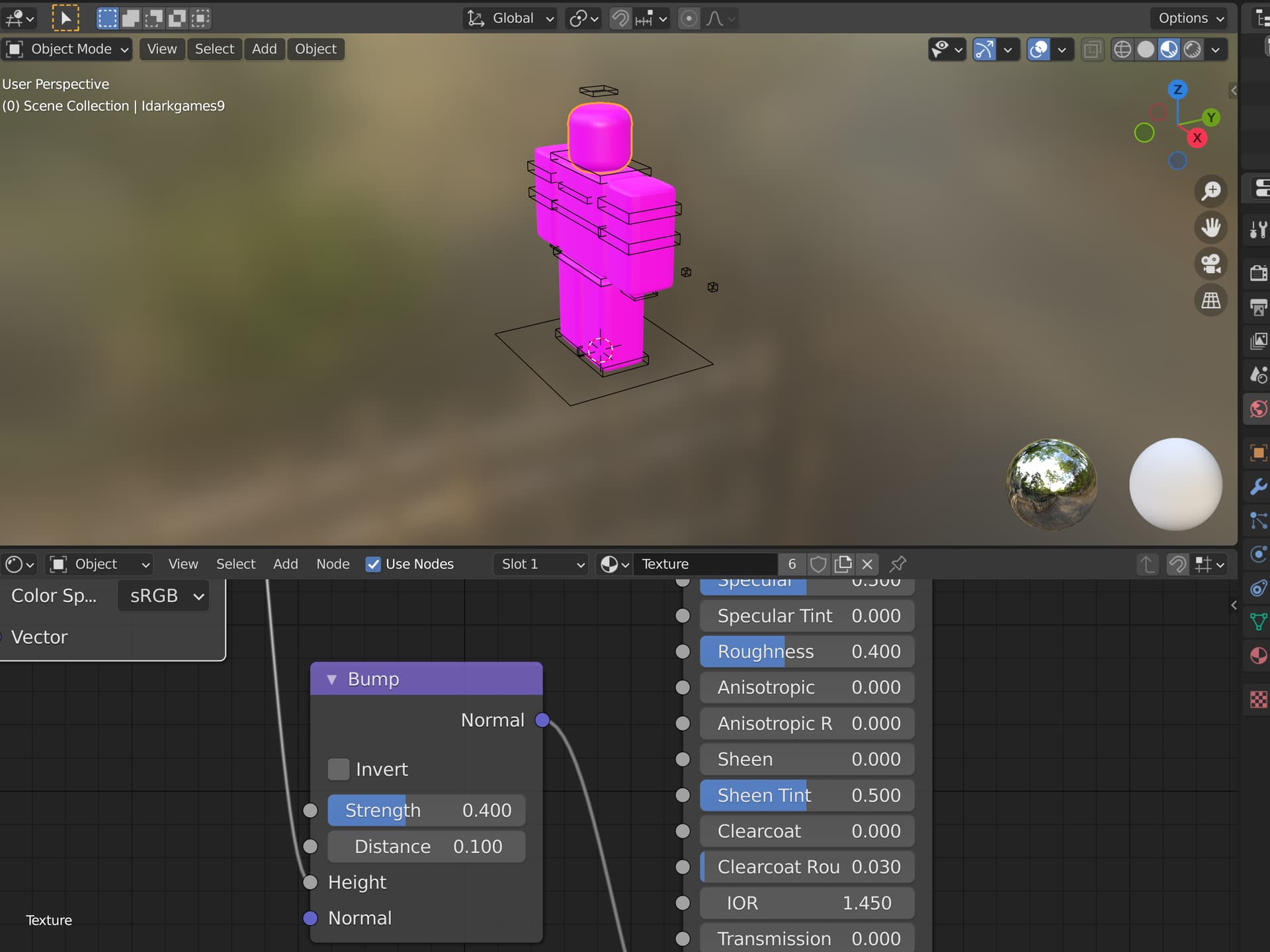
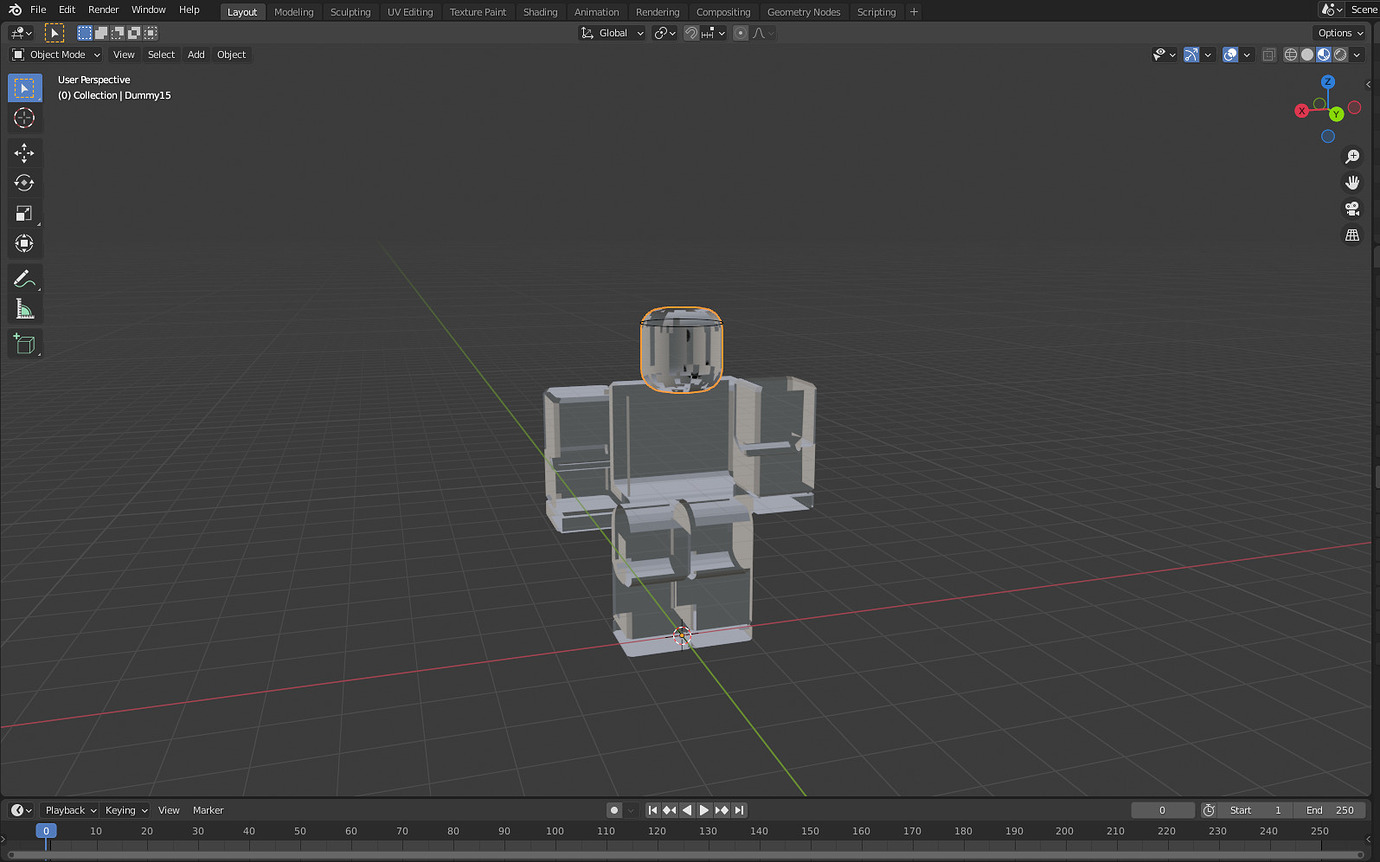


BLENDER Transparent Textures Community Tutorials Developer Forum . How To Fix This Half Transparent Thing When Importing Roblox Objects To . Dummy Becomes Transparent With Viewport Shading In Blender Art Design 2 1380x862 . Roblox Character Transparent When Imported Into Blender Building . Fix Transparent Object When Imported To Blender Building Support 2 1024x485


Blender Why Is My Model Transparent When Rendered Art Design 2 690x367 . Blender Amp Roblox Level Up Your Creations . Animate Your Roblox Avatar In Blender . How To Animate Rigs In Blender For Roblox Studio Roblox Blender . How To Use Blender To Make Roblox Models At Donald Childress Blog


How To Animate Roblox In Blender With 2 Rigs 2025 Tutorial READ DESC . Exportar Modelos De Blender A Roblox Tutorial Parte 1 TikTok Img. Get Blender Models To Roblox HOW TO MODEL Roblox Studio YouTube . How To Import Roblox Models In Blender YT By Artist B Cgian On DeviantArt How To Import Roblox Models In Blender Yt By Artist B Cgian Dh21aow Fullview . How Can I Improve My Roblox Blender Animation Check Comments R How Can I Improve My Roblox Blender Animation Check Comments V0 8uy 09Vq9YQdw



Blender Why Is My Model Transparent When Rendered Art Design . Animate Your Roblox Avatar In Blender . Importing Animation From Blender To Studio Art Design Support . How To Import A Clean Roblox R6 Mesh To Blender Building Support . Animations Blender To Roblox Made Easy



Animations Blender To Roblox Made Easy . Blender To Roblox . What Is Blender For Roblox At Kenneth Negron Blog . How To Import Roblox Models Into Blender With Textures YouTube . Roblox Joins Blender Development Fund Blender Roblox

Is It Possible To Paint On A Roblox Rig E G Blender And Export That . Roblox Blender Roblox Scale Issues . Unlocking Roblox Animation Power With Moon Animator Up To Date 2026 SL1500 . Roblox Studio Blender App2top Blender . How To Render With A Transparent Background In Blender Stills