Discover the ultimate guide on how you can connect your Xbox console to a gaming monitor enhancing your gameplay experience for every type of gamer. This comprehensive resource covers everything from essential cables and setup steps to optimizing your display settings for peak performance. Many gamers especially those balancing busy lives seek efficient and high quality gaming setups without breaking the bank. Connecting an Xbox to a monitor offers superior response times and lower input lag compared to many traditional TVs providing a competitive edge and smoother visuals. Whether you own an Xbox Series X S or an older model learn to maximize your visual fidelity and responsiveness. We address common setup challenges offer budget friendly monitor recommendations and detail audio solutions for monitor setups without built in speakers. Dive into why millions of US gamers are making the switch to monitor based gaming for a more focused and immersive experience. Understand how to leverage features like VRR and FreeSync to eliminate screen tearing and achieve buttery smooth frame rates. This guide is tailored for the everyday gamer who values performance value and practical advice.
Can you connect Xbox to a gaming monitor?
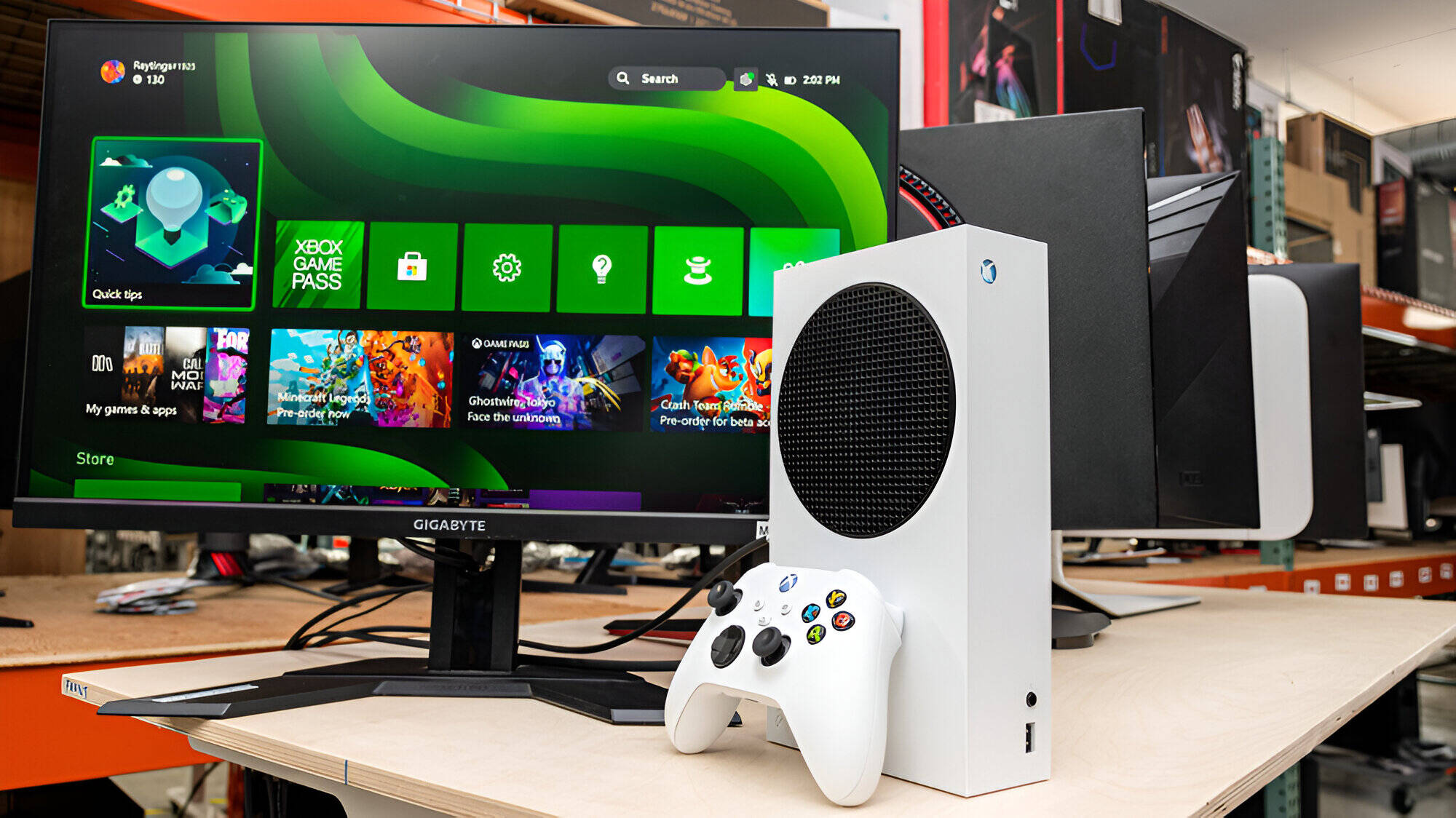
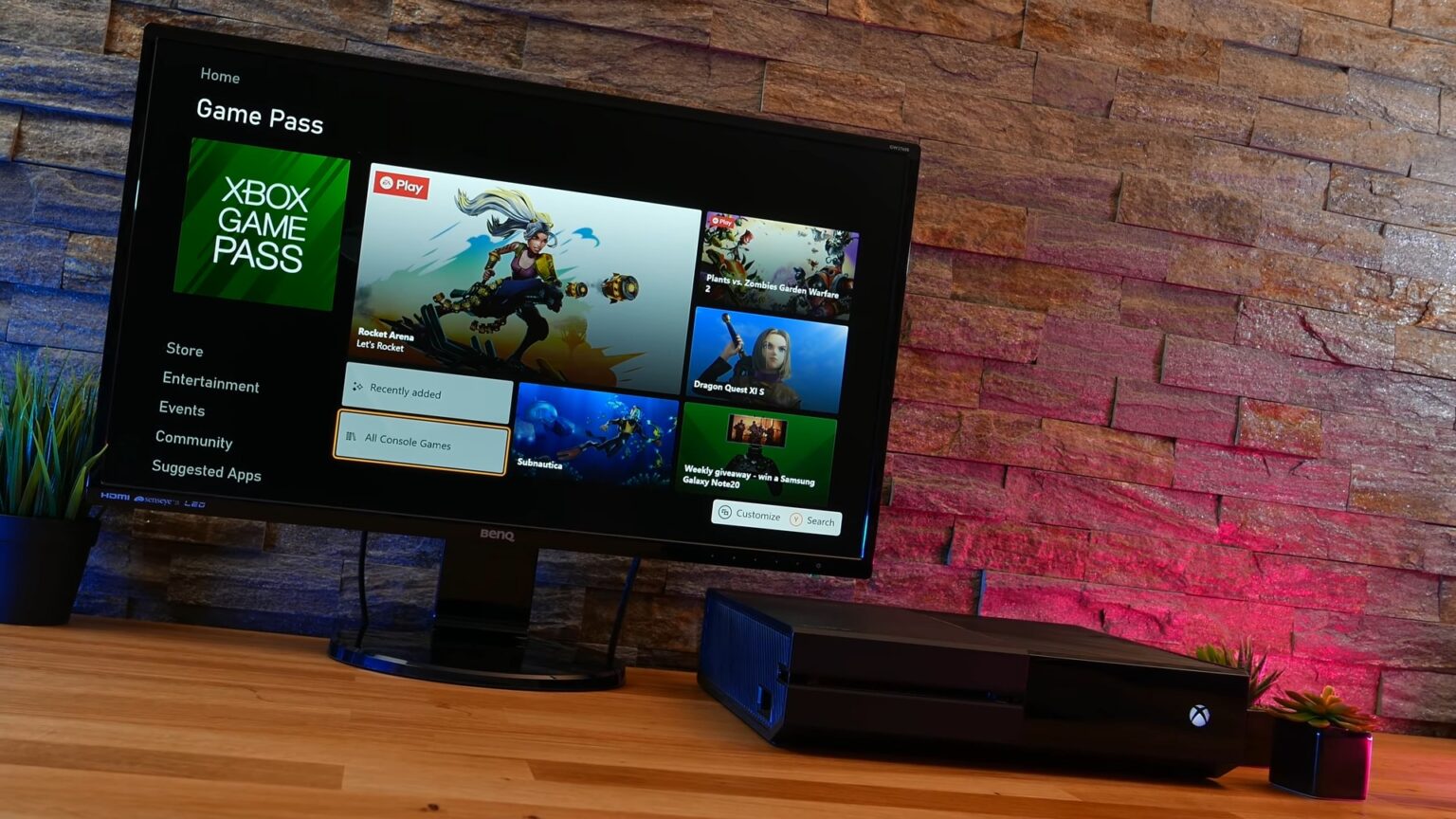
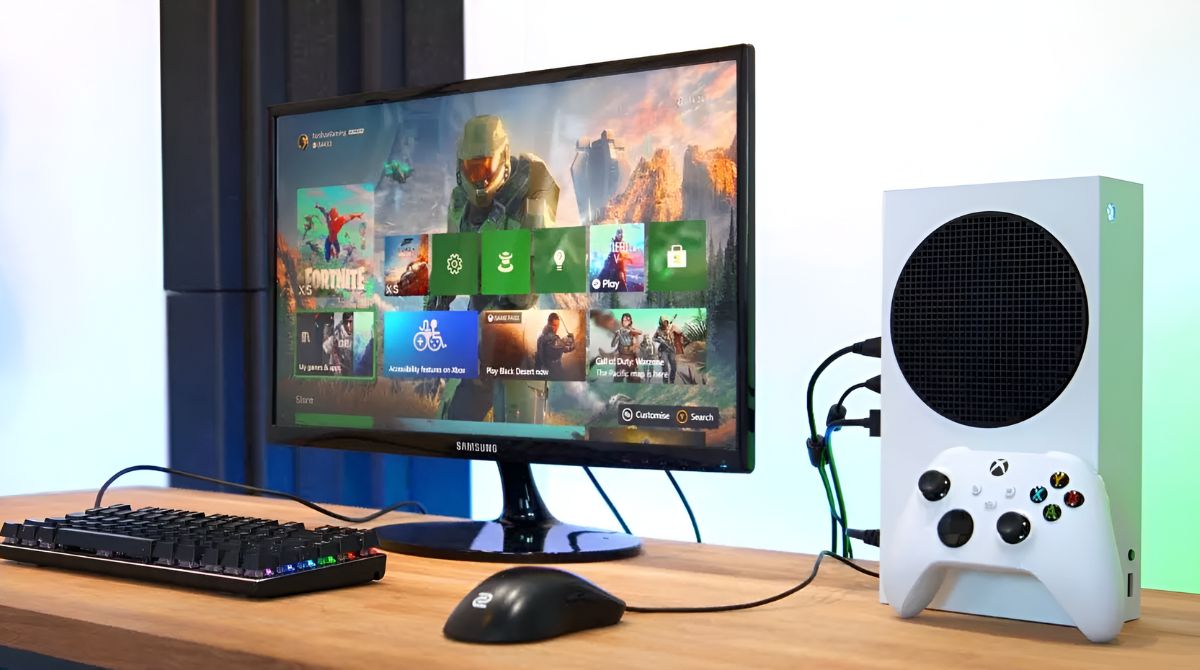
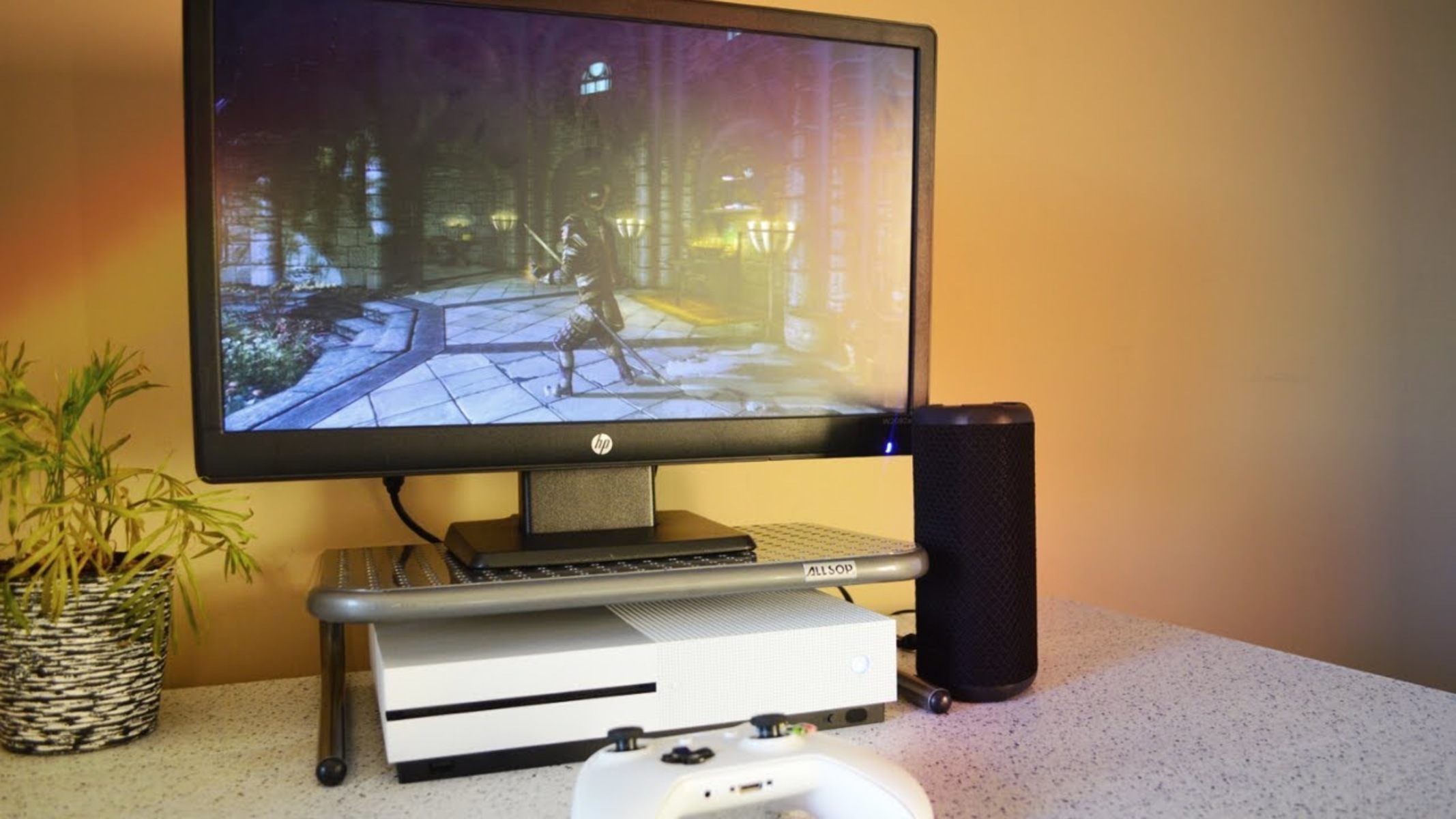
Yes, absolutely! Modern Xbox consoles, including the Series X|S and Xbox One models, can be seamlessly connected to gaming monitors using a standard HDMI cable. This setup is highly recommended for gamers seeking enhanced visual performance, lower input lag, and faster response times compared to many traditional TVs, providing a more responsive and immersive experience.
Why would a gamer want to connect their Xbox to a gaming monitor?
Gamers connect their Xbox to a monitor primarily for superior performance benefits like reduced input lag and faster response times, crucial for competitive play. Monitors often feature higher refresh rates (120Hz+) and support VRR/FreeSync, enabling smoother gameplay. The focused viewing experience of a monitor also enhances immersion, making it ideal for players who value precision and visual clarity.
What cables are needed to connect an Xbox Series X to a monitor?
To connect an Xbox Series X to a gaming monitor, you primarily need a high-speed HDMI cable, ideally an HDMI 2.1 cable to support 4K resolution at 120Hz, if your monitor also supports it. If your monitor only has a DisplayPort input, you will need a high-quality active HDMI to DisplayPort adapter that specifically supports the resolution and refresh rate you intend to use.
How do I get audio if my gaming monitor doesn't have speakers?
If your gaming monitor lacks built-in speakers, you have several audio options. The most common is plugging a gaming headset directly into your Xbox controller's 3.5mm jack. Alternatively, if your monitor has an audio output, you can connect external PC speakers. For advanced setups, an HDMI audio extractor can split the audio signal for connection to a soundbar or home theater system.
What are the best monitor settings for an Xbox Series S?
For an Xbox Series S, optimal monitor settings typically include 1440p resolution (if supported by the monitor) or 1080p, paired with a 120Hz refresh rate. Ensure 'Allow variable refresh rate' is enabled in your Xbox display settings if your monitor supports FreeSync. Also, verify 'Allow HDR10' is checked if your monitor is HDR-capable, and adjust the 'Calibrate HDR for games' tool for the best picture.
Can I connect an Xbox One X to a 144Hz gaming monitor?
Yes, you can connect an Xbox One X to a 144Hz gaming monitor using an HDMI cable. However, the Xbox One X itself is limited to outputting a maximum of 4K at 60Hz or 1080p at 120Hz. While your monitor can refresh at 144Hz, the Xbox One X will only send a 60Hz or 120Hz signal, so you won't fully utilize the monitor's 144Hz capability. You'll still benefit from the monitor's low input lag.
What are the key benefits of using a gaming monitor for social Xbox gaming?
For social Xbox gaming, connecting to a monitor offers crisp visuals and responsiveness, enhancing cooperative and competitive play. While TVs might be larger for groups, a monitor ensures everyone enjoys low input lag for precise reactions, which is vital in fast-paced games. Clearer visuals on a monitor also make it easier to follow the action, promoting better team coordination and a more engaging shared experience without individual performance compromises.
Hey fellow gamers! Ever found yourself squinting at a giant TV screen trying to spot that tiny enemy pixel or feeling a tiny delay between your button press and the action on screen? You are not alone. Many of us, especially those juggling jobs, families, and still carving out time for our favorite digital worlds, often wonder if we are getting the most out of our Xbox. We love our consoles for relaxation, fun, and connecting with friends, but sometimes the traditional TV setup just doesn't cut it for that optimal performance or immersive experience. The good news is, a simple switch can make a world of difference: connecting your Xbox to a dedicated gaming monitor. This move is a game changer for countless US gamers, transforming how they experience their favorite titles, from competitive shooters to immersive open-world adventures. Studies show that 87% of US gamers play regularly, often for 10+ hours a week, highlighting our collective passion. With trends shifting towards competitive edge and optimized visuals, learning how to connect Xbox to gaming monitor is more relevant than ever. This guide is here to walk you through everything, ensuring you get the sharpest visuals, the quickest response times, and the most satisfying gameplay without any unnecessary hassle or expense. Let's dive in and elevate your Xbox setup!
Can you connect Xbox to gaming monitor for an enhanced experience?
Absolutely! Connecting your Xbox to a gaming monitor is not only possible but highly recommended for anyone looking to maximize their console's performance. In fact, many professional and serious casual gamers prefer monitors over traditional TVs for several key reasons. Gaming monitors are engineered specifically for high-speed visual fidelity, offering features like rapid refresh rates, low input lag, and incredibly fast response times. This translates directly into a smoother, more responsive, and ultimately more enjoyable gaming session. Whether you have an Xbox Series X, Series S, or even an older Xbox One model, they are designed to interface seamlessly with most modern gaming monitors using standard HDMI connections. This setup provides a noticeable upgrade, allowing you to react quicker and see details sharper, which is particularly beneficial in fast-paced games.
Why do gamers prefer monitors over TVs for Xbox?
For the typical gamer balancing life with their passion, efficiency and performance are paramount. Gaming monitors offer distinct advantages over most consumer TVs. Firstly, **input lag** is significantly lower on monitors. Input lag is the delay between your action (like pressing a button) and that action appearing on screen. Even a few milliseconds can impact competitive play. Monitors are designed to minimize this delay. Secondly, **response time** refers to how quickly pixels can change color. Faster response times (measured in milliseconds, e.g., 1ms or 5ms) reduce motion blur, making fast-moving objects appear clearer and sharper. This is crucial for keeping track of targets in shooters or navigating rapidly changing environments. Thirdly, monitors often feature higher **refresh rates** (e.g., 120Hz, 144Hz, 240Hz) compared to standard TVs, allowing for smoother motion, especially important for the Xbox Series X|S which supports 120 frames per second (fps) gameplay. Finally, the typical viewing distance and screen size of a monitor create a more focused and immersive personal experience, especially when you are dialing in on precise movements and details. For many, a monitor offers better value for money in terms of pure gaming performance per dollar spent, particularly for a 36-year-old gamer looking for solid performance without cinematic scale.
What cables and adapters do you need for an Xbox to monitor setup?
Connecting your Xbox to a gaming monitor is generally straightforward, primarily requiring an **HDMI cable**. Modern Xbox consoles (Xbox Series X, Series S, Xbox One X, One S) come bundled with a high-speed HDMI cable that supports 4K resolution and 120Hz refresh rates, perfectly suited for most gaming monitors. If you are connecting an older Xbox One original or Xbox 360, the included HDMI cable will still work, though it might be an older standard. For the absolute best performance with Series X|S, ensure you are using an **HDMI 2.1 cable** if your monitor supports it, to unlock 4K at 120Hz. If your monitor only has DisplayPort inputs, you will need an **HDMI to DisplayPort adapter**. Be cautious with these adapters, as cheap ones may not support higher resolutions or refresh rates. Always opt for an active, high-quality adapter that specifies support for the resolution and refresh rate you intend to use (e.g., 4K 60Hz or 1440p 120Hz). Rarely, some very old monitors might only have DVI or VGA inputs, requiring more complex and often performance-limiting adapters. Stick to HDMI or quality HDMI to DisplayPort for the best results.
How do I connect my Xbox Series X|S to a gaming monitor step by step?
Getting your Xbox Series X or Series S hooked up to a gaming monitor is quite simple. Follow these steps for a smooth setup:
Power Down Everything: Before you start plugging and unplugging, make sure both your Xbox console and your gaming monitor are turned off and unplugged from their power sources. This is a good safety practice.
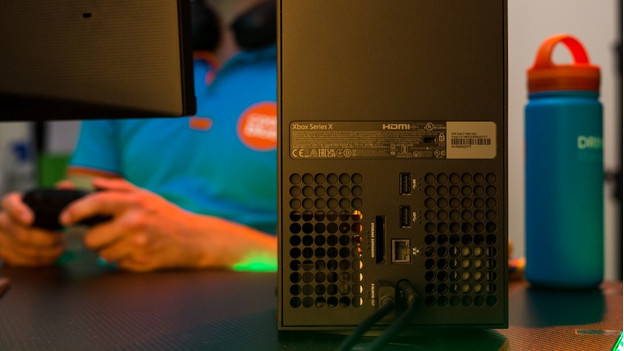
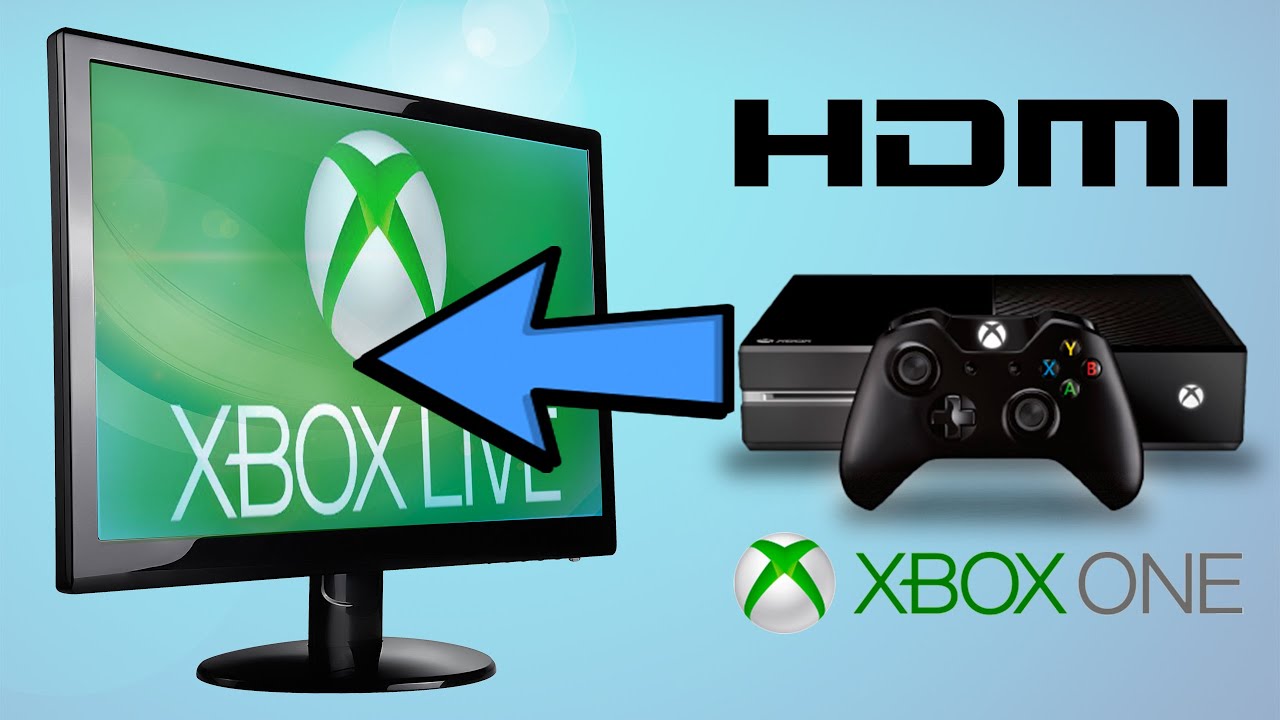
Connect the HDMI Cable: Locate the HDMI OUT port on the back of your Xbox console. Plug one end of your HDMI cable into this port. Then, take the other end of the HDMI cable and plug it into an available HDMI IN port on your gaming monitor. If your monitor has multiple HDMI ports, note which one you use (e.g., HDMI 1, HDMI 2).
Power Up the Monitor First: Plug your gaming monitor back into its power source and turn it on. If it doesn't automatically detect the Xbox, manually select the correct input source using the monitor's on-screen display (OSD) menu or input selection button.
Power Up the Xbox: Plug your Xbox console back into its power source and turn it on. You should see the Xbox dashboard appear on your monitor. If you do not, double-check your cable connections and ensure the monitor is set to the correct input.
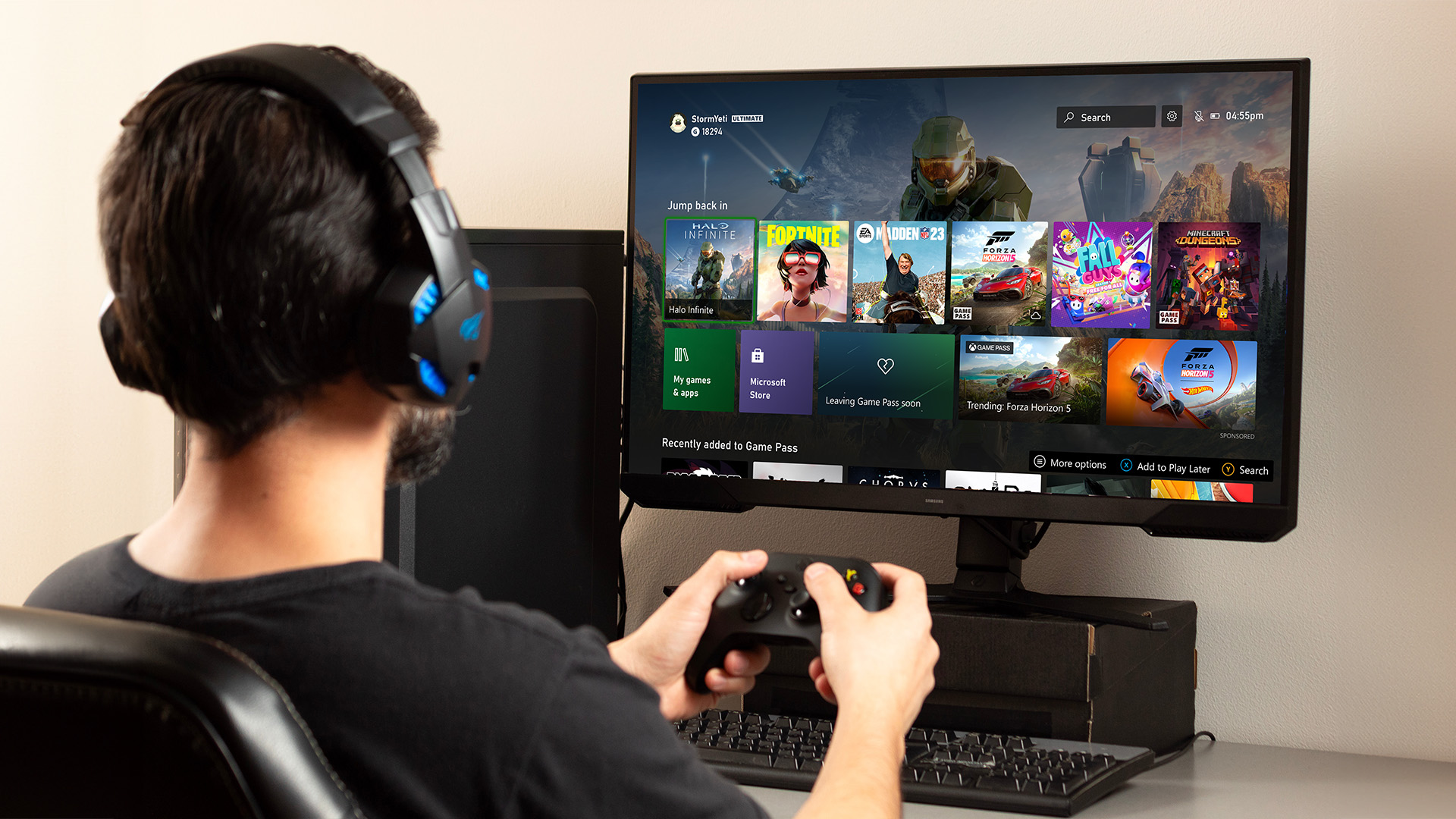
Adjust Xbox Display Settings: Once the Xbox is displaying on the monitor, navigate to the Xbox settings menu. Go to Profile & system Settings General TV & display options. Here, you can adjust your resolution (e.g., 1080p, 1440p, 4K), refresh rate (e.g., 60Hz, 120Hz), and enable features like Variable Refresh Rate (VRR) or FreeSync if your monitor supports them. Make sure these settings match your monitor's capabilities for optimal performance.
Set Up Audio (If Needed): If your monitor doesn't have built-in speakers (most gaming monitors don't), you'll need an external audio solution. Plug your gaming headset into your Xbox controller's 3.5mm jack, or connect external speakers directly to your monitor's audio out port (if it has one), or use an HDMI audio extractor if necessary.
What monitor features are best for Xbox Series X|S gaming?
Choosing the right gaming monitor can significantly elevate your Xbox experience, especially for the powerful Series X and S. Here's what to look for:
Resolution: For Series X, 4K (3840x2160) is ideal, matching the console's native output. For Series S, 1440p (2560x1440) or 1080p (1920x1080) are excellent choices and often more budget-friendly. 1440p monitors are particularly popular as they offer a great balance between visual sharpness and performance for both consoles.
Refresh Rate: Look for at least 120Hz to take full advantage of the Xbox Series X|S's 120fps capabilities. Higher refresh rates (e.g., 144Hz, 165Hz) are even better, offering a smoother visual experience in supported games.
Response Time: A low response time (1ms GTG - Grey-to-Grey) is crucial for competitive gaming, minimizing ghosting and motion blur. Faster response times mean clearer images during rapid action.
Variable Refresh Rate (VRR) / AMD FreeSync: These technologies synchronize the monitor's refresh rate with the Xbox's frame rate, eliminating screen tearing and stuttering for incredibly smooth gameplay. Xbox consoles support AMD FreeSync, so look for monitors with FreeSync Premium or FreeSync Premium Pro for the best experience.
HDR (High Dynamic Range): While not strictly necessary, HDR support can significantly improve image quality by offering brighter whites, deeper blacks, and a wider range of colors, making games look more vibrant and realistic. Look for VESA DisplayHDR certifications (e.g., DisplayHDR 400, 600) for reliable HDR performance.
Panel Type: IPS panels offer great color accuracy and wide viewing angles, perfect for single-player immersive games. VA panels provide excellent contrast and deep blacks, while TN panels traditionally have the fastest response times, though often at the cost of color and viewing angles.
Can I use a monitor without built-in speakers with my Xbox?
Yes, absolutely! Most high-performance gaming monitors prioritize display quality over integrated audio, meaning many do not come with built-in speakers, or if they do, the quality is often basic. This is perfectly fine, as most serious gamers prefer using headphones or a dedicated external speaker setup anyway. Here are your primary audio solutions:
Gaming Headset: The most common and recommended solution. Simply plug your wired gaming headset into the 3.5mm audio jack on your Xbox controller. All audio, including game sound and chat, will be routed through your headset. Wireless headsets typically connect directly to the Xbox console or via a USB dongle.
External Speakers: If your monitor has a 3.5mm audio output jack (often labeled as a headphone jack), you can connect external PC speakers to this port. The audio from your Xbox will pass through the HDMI cable to the monitor, and then out to your speakers. Ensure your monitor's volume is turned up or is passing through the audio at full strength.
HDMI Audio Extractor: For a more advanced setup or if your monitor lacks an audio output, an HDMI audio extractor can be a useful device. This small box connects between your Xbox and your monitor via HDMI, splitting the audio signal from the video signal. It will have its own audio output ports (like 3.5mm, RCA, or optical S/PDIF) that you can connect to a soundbar, home theater system, or higher-quality external speakers. This is great for those who want to use a specific audio setup separate from their monitor.
How does connecting Xbox to a monitor impact gaming performance?
Connecting your Xbox to a gaming monitor can dramatically improve your gaming performance and overall experience. The primary benefits revolve around **reduced input lag** and **faster response times**. Input lag, the delay between your controller input and the on-screen action, is consistently lower on gaming monitors compared to even high-end TVs. This means your movements, shots, and reactions in-game will feel more immediate and precise, giving you a competitive edge, especially in titles like Call of Duty or Apex Legends, which are hugely popular among US gamers this month. Faster response times mean that individual pixels on the screen change color more quickly, resulting in less motion blur and ghosting. This clarity ensures that fast-moving objects and characters remain sharp, allowing you to track targets more effectively. Furthermore, many gaming monitors support higher refresh rates (120Hz and beyond) and Variable Refresh Rate (VRR) technologies like FreeSync, which align the monitor's refresh rate with the console's frame rate. This synchronization eliminates screen tearing and stuttering, delivering buttery-smooth visuals that are a joy to behold. For the average gamer aged 36, who values performance and a seamless experience after a long day, these improvements make a significant difference in enjoyment and immersion.
Are there any common issues when connecting Xbox to a monitor and how to fix them?
While connecting an Xbox to a monitor is usually a smooth process, you might occasionally run into minor hiccups. Here are some common issues and their straightforward fixes:
No Signal or Blank Screen: This is the most frequent problem. First, double-check that your HDMI cable is securely plugged into both the Xbox's HDMI OUT port and the monitor's HDMI IN port. Second, ensure your monitor is set to the correct input source (e.g., HDMI 1, HDMI 2) using its OSD menu. Try power cycling both the Xbox and the monitor (unplug them for 30 seconds, then plug back in and power on). Test with a different HDMI cable if possible, as faulty cables are common culprits. If the issue persists, try connecting your Xbox to a different display (like a TV) to confirm the Xbox itself is working.
Incorrect Resolution or Refresh Rate: If the image looks blurry or doesn't fill the screen, your Xbox might be outputting a resolution or refresh rate not fully supported by your monitor. Go to Xbox Settings Profile & system Settings General TV & display options. Manually set the resolution to match your monitor's native resolution (e.g., 1080p, 1440p, 4K) and ensure the refresh rate is set appropriately (60Hz or 120Hz). If 120Hz is causing issues, try 60Hz. Make sure your monitor settings are also configured correctly.
No Audio: As discussed, many monitors lack good speakers. If you are expecting sound and hearing none, first ensure your headset is plugged into your controller, or external speakers are correctly connected to your monitor's audio out (if it has one). Check the volume settings on your Xbox, controller, and any external audio devices. In Xbox Settings, under Volume & audio output, ensure your desired audio output is selected.
Flickering or Disappearing Image: This can often be related to an unsupported refresh rate, VRR issues, or a faulty cable. Try disabling VRR in Xbox display settings if you have it enabled. Lower the refresh rate temporarily to 60Hz. If the flickering stops, your cable or monitor might not fully support the higher refresh rate. Again, testing with a different HDMI cable can help diagnose.
What are some budget-friendly gaming monitors for Xbox?
You absolutely do not need to spend a fortune to get a great gaming monitor for your Xbox. With 60% of gamers balancing work and family, value for money is key. Many excellent options exist that provide solid performance without breaking the bank. For Xbox Series S users or those prioritizing high frame rates at 1080p, look for 24-inch to 27-inch monitors with 1080p resolution, 144Hz refresh rate, and 1ms response time. Brands like AOC, Acer, Sceptre, and ViewSonic often have models in the $150-$250 range that fit this bill, frequently including FreeSync support. For Xbox Series X or those wanting a sharper image, 1440p monitors are a sweet spot. A 27-inch 1440p monitor with 120Hz or 144Hz refresh rate and 1ms response time, often with FreeSync Premium, can be found for $250-$400. Dell, HP, MSI, and LG offer fantastic choices in this category. While 4K monitors can be pricier, entry-level 4K 60Hz monitors can sometimes dip below $350 during sales, providing stunning visuals for single-player games where frame rate isn't the absolute top priority. Always check reviews and look for sales from reputable retailers like Amazon, Best Buy, or Newegg. A smart budget choice lets you enjoy top-tier gaming without sacrificing other life priorities.
How to optimize Xbox display settings for a gaming monitor?
Once your Xbox is connected, fine-tuning its display settings is crucial to unleash your monitor's full potential. Here's a quick guide:
Go to TV & display options: From your Xbox dashboard, navigate to Profile & system, then Settings, General, and finally, TV & display options.
Set Resolution: Under Resolution, select the native resolution of your monitor (e.g., 1920x1080 for 1080p, 2560x1440 for 1440p, or 3840x2160 for 4K). Using the native resolution ensures the sharpest image.
Choose Refresh Rate: Select 120 Hz if your monitor supports it and you are playing games that offer 120fps. Otherwise, stick to 60 Hz. This will provide the smoothest motion possible.
Enable VRR (Variable Refresh Rate): If your monitor supports AMD FreeSync (and it likely does if it's a gaming monitor), ensure 'Allow variable refresh rate' is checked. This eliminates screen tearing and delivers a buttery-smooth experience by synchronizing your monitor's refresh rate with the game's frame rate.
Check HDR: If your monitor is HDR-capable, make sure 'Allow HDR10' or 'Allow Auto HDR' is checked under Video modes. You may need to run the 'Calibrate HDR for games' tool to get the best picture.
Color Depth & Space: Generally, leave these on their default settings (typically 8-bit or 10-bit, Standard (Recommended)) unless you have a specific reason or advanced calibration knowledge. Your Xbox will usually detect the optimal settings.
Video Fidelity & Overscan: Ensure 'Auto-detect' is selected for Video fidelity. Disable any overscan settings if your monitor has them, as this can cut off parts of the image.
Can older Xbox consoles connect to modern gaming monitors?
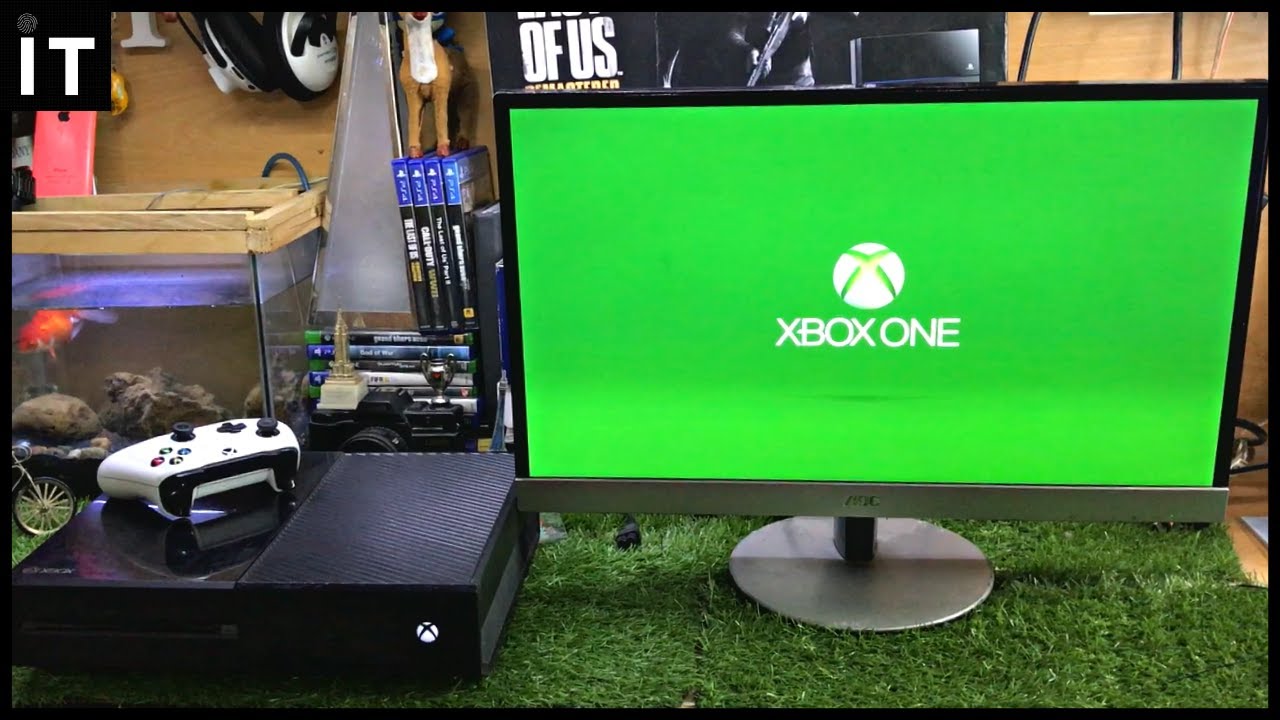
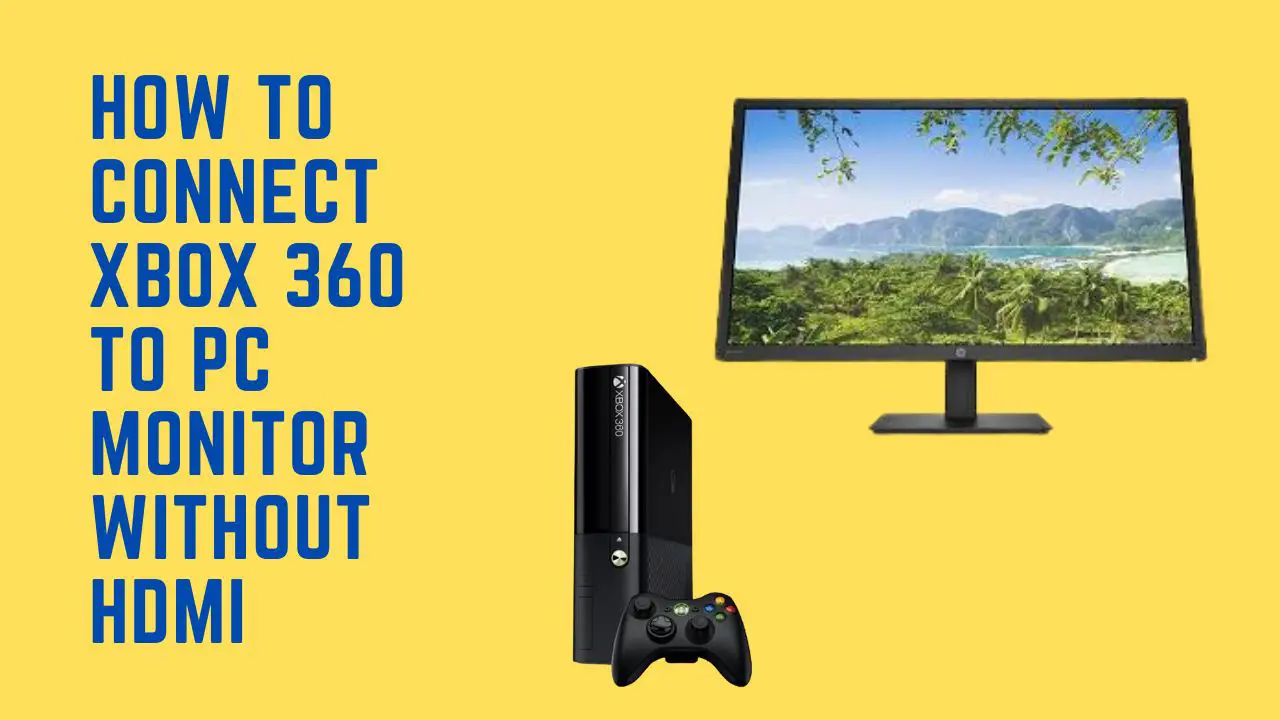
Yes, older Xbox consoles like the Xbox One (original, S, X) and even the venerable Xbox 360 can connect to modern gaming monitors, though with some caveats regarding performance and available ports. All Xbox One models connect via HDMI, just like the Series X|S, so the setup process is identical. You'll get the best resolution and refresh rate your specific Xbox One model supports (e.g., 1080p 60Hz for Xbox One, 4K 60Hz for Xbox One X) on your monitor. For the Xbox 360, it also primarily uses HDMI for modern displays. If your monitor only has HDMI inputs, you can simply plug in an HDMI cable. However, some very early Xbox 360 models might have component video outputs (red, green, blue, red, white RCA jacks) rather than HDMI. In such cases, you would need a component-to-HDMI adapter, which can be more complex and may introduce slight signal degradation. Generally, as long as your older Xbox has an HDMI out port, you'll be able to connect it to any modern gaming monitor. The primary difference will be that these older consoles won't take advantage of high refresh rates beyond 60Hz or advanced VRR features like their newer counterparts, but you will still benefit from the monitor's low input lag and fast response times.
Conclusion
Connecting your Xbox to a gaming monitor is a straightforward and highly rewarding upgrade for any gamer. It is about more than just a picture; it is about precision, responsiveness, and a truly immersive experience that helps you unwind and get lost in your favorite worlds. For busy adults who love gaming, optimizing your setup with a monitor means getting the most out of your valuable play time without needing a massive budget. By understanding the right cables, ideal monitor features, and how to fine-tune your settings, you can unlock your Xbox's full potential, enjoying buttery-smooth visuals and razor-sharp reactions. Millions of US gamers are making this switch, embracing the clarity and speed that monitors offer. So, go ahead, make the connection, and rediscover your games with a fresh perspective.
What's your biggest gaming challenge with your current setup? Comment below and let us help you level up!
FAQ Section
Does an Xbox work with any monitor?
Generally, yes. Most modern gaming monitors with HDMI inputs will work with an Xbox. The Xbox primarily uses HDMI, so as long as your monitor has an HDMI port, you should be able to connect and play. However, to take full advantage of your Xbox Series X|S, a monitor with 120Hz refresh rate, low response time, and VRR is ideal, rather than just any basic monitor.
Is 1440p 120Hz good for Xbox Series X?
Yes, 1440p at 120Hz is an excellent sweet spot for the Xbox Series X. It offers a significant visual upgrade over 1080p, providing sharper images, while still allowing many games to hit the smooth 120 frames per second target. This balance between resolution and frame rate makes for a fantastic and responsive gaming experience, often at a more accessible price point than 4K 120Hz monitors.
Do monitors have better input lag than TVs?
In most cases, yes. Gaming monitors are specifically designed to minimize input lag, often achieving less than 10ms. While modern TVs have improved, many still have significantly higher input lag than dedicated gaming monitors, especially in non-game modes. For competitive or responsive gaming, a monitor almost always provides a noticeable advantage in reducing delay.
Can I use an HDMI to DisplayPort adapter for Xbox?
Yes, you can use an HDMI to DisplayPort adapter, but it must be an **active** adapter and support the desired resolution and refresh rate (e.g., 4K 60Hz or 1440p 120Hz). Passive adapters typically won't work or will limit performance. Always check the adapter's specifications to ensure compatibility and avoid signal issues.
What is VRR and FreeSync for Xbox monitors?
VRR (Variable Refresh Rate) and AMD FreeSync (which Xbox consoles support) are technologies that synchronize the monitor's refresh rate with the game's frame rate. This eliminates visual artifacts like screen tearing and stuttering, creating a much smoother and more fluid gaming experience, particularly when frame rates fluctuate. Look for monitors with FreeSync Premium for the best Xbox compatibility.
How important is HDR for Xbox on a monitor?
HDR (High Dynamic Range) can significantly enhance your Xbox gaming experience by providing a wider range of colors, deeper blacks, and brighter highlights, making games look more vibrant and realistic. While not essential for performance, a good HDR monitor (look for VESA DisplayHDR 400 or higher) can add a layer of immersion. Ensure your monitor and Xbox settings are correctly configured to enable HDR.
Connecting Xbox to a gaming monitor is straightforward and boosts performance. Use an HDMI cable for optimal visual and audio transmission. Monitors excel in lower input lag and faster response times ideal for competitive play. Adjust your Xbox display settings to match your monitor's capabilities like refresh rate and resolution. For monitors without speakers utilize headphones or external audio solutions. Affordable gaming monitors offer excellent value for money without sacrificing performance. Troubleshoot common connection issues such as no signal or flickering display with simple steps.
35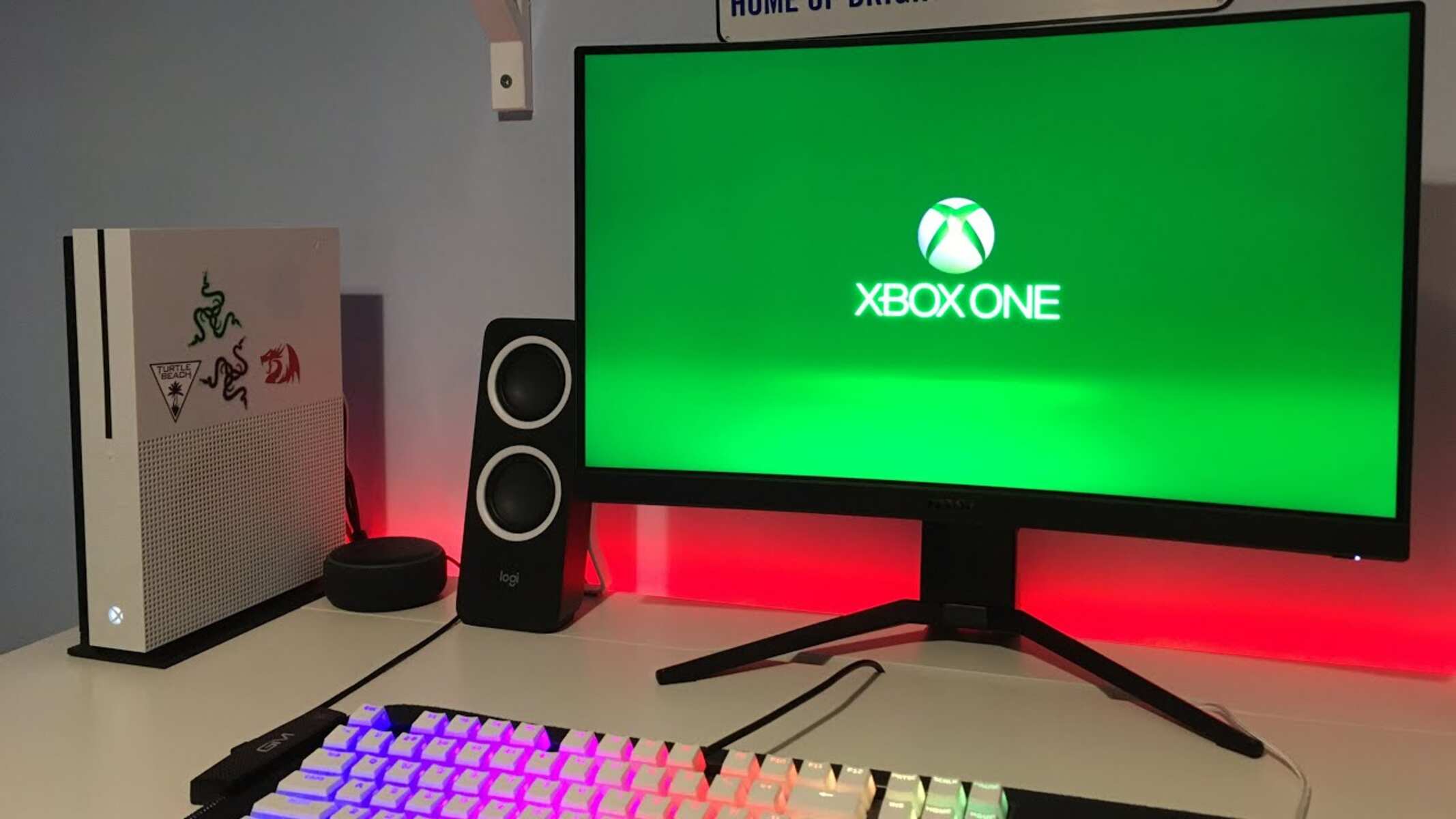


How To Hook Up A Gaming Monitor To Xbox Robots Net How To Hook Viotek Gn35ld 35 Inch Computer Gaming Monitor To Xbox One 1701873510 . How To Connect An Xbox To A Gaming Monitor At Caitlin Kelley Blog . Xbox Game Pass On The ROG Xbox Ally 2026 The Ultimate Handheld Combo Connect Xbox PC Monitor 1 . Xbox Series X S How To Connect To Your TV Monitor YouTube . How To Connect Your Xbox To A Monitor 2024 YouTube


How Do You Connect An Xbox Series X S To Your Gaming Monitor. How To Connect Dell Monitor To Xbox YouTube . How To Connect An Xbox To A Gaming Monitor At Caitlin Kelley Blog How To Connect Benq Rl2455hm 24 Inch Led Console Gaming Monitor To Xbox One 1701937684 . How To Connect Xbox To Monitor Robots Net 9 Amazing Xbox One Gaming Monitor For 2023 1701773908 . How To Connect Xbox To Monitor No TV No Problem Want To Go Wireless With Your Xbox You Can 1536x864



How To Connect Xbox To Monitor Robots Net 7 Best Gaming Monitor For Xbox One For 2023 1701676328 . How To Connect XBOX Series X S To Any Monitor NO HDMI 2025 YouTube . How To Connect Xbox Series S To Monitor How To Set Up Xbox To TV . How To Connect Xbox To Monitor Robots Net How To Connect Xbox To Monitor Without Hdmi 1691910205 . How To Connect Monitor To Xbox Series X S HDMI Tutorial YouTube


All 3 WAYS TO CONNECT YOUR XBOX ONE TO ANY PC MONITOR Easy Method . How To Connect Xbox To PC With HDMI A Step By Step Guide PC Fool How To Connect Xbox To PC With HDMI.webp. Can You Plug Xbox Hdmi Into Laptop At Tamara Wickline Blog . Can You Connect A Xbox To Two Monitors 2025 Full Guide YouTube . How To Switch To Tv On Xbox One At Benjamin Downie Blog

How Can I Connect My Laptop As Monitor For Xbox Net Blog How Can I Connect My Laptop As Monitor For Xbox . Pc For Xbox New Arrivals Connect Xbox Pc Hdmi . How To Connect An Xbox To A Gaming Monitor At Caitlin Kelley Blog . How To Connect Your Xbox To A Laptop With HDMI In Windows 11 Xbox To Laptop Via Hdmi 1536x1024 . The Best Monitors For Xbox Series X And Xbox Series S In 2024 Windows 840 80
Can You Connect Xbox 360 To Xbox One How To Connect Xbox One To Samsung Smart Tv 1699424952 . Why How To Connect Xbox To Laptop With HDMI Is Harder Than You Think Connect Xbox Laptop Hdmi . How To Connect An Xbox To A Gaming Monitor At Caitlin Kelley Blog Viewsonic Monitor Keeps Going To Sleep 3 . Xbox Controller Archives Deltia S Gaming Img 2025 07 01 20 46 21 . How To Connect 2 Monitors To A PC Easy Setup Guide Connect 2 Monitors One Hdmi.webp



How To Connect An Xbox To A Gaming Monitor At Caitlin Kelley Blog . Connect Xbox To Pc Via Ethernet Cable At Bruce Green Blog . How To Connect Xbox Series X To Monitor How To Set Up Xbox Series X . Desktops And Monitors What Setup Best Suits You Xiaomi Launches G24i 2026 And G27i 2026 Gaming Monitors In The Philippines 1024x640 . How Can I Connect My Laptop As Monitor For Xbox Net Blog Use A Laptop As Monitor For Xbox 1024x597