Ever wondered if Roblox accepts those amazing custom rigs you see created in Blender? For the average gamer juggling work, family, and a passion for immersive digital worlds, understanding how to integrate custom 3D assets can seem like a daunting task. This comprehensive guide cuts through the confusion, explaining precisely "does Roblox accept Blender rig" and how you can leverage Blender's power to elevate your Roblox creations. We'll demystify the process, from preparing your model in Blender to successfully importing it into Roblox Studio, focusing on practical solutions for common pain points. Discover how custom Blender rigs can unlock new levels of creativity and distinction for your Roblox games. This article is your essential resource for mastering custom character and object integration, helping you build engaging experiences without unnecessary complexity or time sink, ensuring your virtual worlds truly stand out in 2026.
Related games- Guide to Roblox Toy Codes: Unlock Digital Fun Now!
- Guide How to Party in Roblox Epic Virtual Events
- Guide to Dancing in GTA: Master the Moves!
Is it possible to use Blender models and rigs in Roblox?
Yes, absolutely. Roblox Studio supports importing models and rigs created in Blender. This process typically involves exporting your Blender creation as an FBX file, which can then be imported into Roblox Studio, bringing in your custom mesh, textures, and the skeletal armature. This allows creators to build highly unique characters, creatures, and animated props for their Roblox games, greatly expanding creative possibilities beyond standard assets.
What is the best way to export a rigged character from Blender for Roblox?
The optimal method involves exporting as an FBX file with specific settings to ensure compatibility. Key steps include applying all transforms (scale, rotation, location) in Blender, setting the export axes to -Z Forward and Y Up, selecting only 'Armature' and 'Mesh' object types, and unchecking 'Add Leaf Bones' under the Armature settings. This precise configuration minimizes common import errors like incorrect scaling or orientation in Roblox Studio.
Do Blender animations transfer directly to Roblox?
While Blender rigs can be imported, animations themselves typically do not transfer directly in a fully functional, ready-to-use state. While an FBX can contain animation data, Roblox's animation system often requires animations to be recreated or refined within Roblox Studio's Animation Editor. This ensures they interact correctly with Roblox's physics and character systems, providing the best in-game performance and fidelity for your custom characters.
What are the essential steps for importing a custom Blender rig into Roblox Studio?
Key steps include first exporting your properly prepared and optimized rig from Blender as an FBX file. Then, in Roblox Studio, use the 'Avatar Importer' (for characters) or 'MeshPart' (for objects) feature to bring in the FBX. After import, you'll need to correctly set up Motor6Ds or WeldConstraints between the rig's parts to ensure they are connected and can be animated within the Roblox environment.
What file format does Roblox prefer for Blender rigs?
Roblox primarily prefers the FBX (.fbx) format for importing rigged characters and meshes due to its robust support for mesh data, armatures, and sometimes even basic animation data. The FBX format is an industry standard for 3D asset exchange and is well-integrated into Roblox Studio's import pipeline, making it the most reliable choice for bringing your Blender creations into the platform.
How can I fix common rigging errors when bringing Blender models to Roblox?
Common errors often stem from incorrect export settings, scale issues, or inverse kinematics not translating properly. To fix them, review Blender's origin point, apply all transforms (Ctrl+A) before export, and ensure meticulous weight painting. In Roblox, check Motor6D connections, scale, and re-import if necessary. Consistent bone naming also helps prevent unexpected behavior and makes debugging easier for busy creators.
Can I create Rthro-compatible rigs using Blender for Roblox?
Yes, you can absolutely design Rthro-style characters in Blender, but you must strictly adhere to Roblox's specific Rthro rig and accessory specifications. This includes precise bone naming conventions, joint placements, and a hierarchy that aligns with the Rthro standard. Following these guidelines ensures proper compatibility, animation blending, and accessory attachment within the Roblox ecosystem, allowing your custom characters to integrate seamlessly.
As a gamer who loves diving into immersive experiences and perhaps even building them, you know the thrill of creating something truly unique. But let's be real, balancing your passion for gaming with a job, family, and life's demands means you don't have endless hours to troubleshoot technical hurdles. One burning question for many aspiring Roblox developers, or even just those curious about how the pros make their amazing characters, is: does Roblox accept Blender rigs? You see incredible custom characters and animated objects in your favorite Roblox experiences and wonder if that flexibility extends to your own creative endeavors. The good news is, yes, it absolutely does, but there's a specific path to make it happen. This guide will walk you through everything you need to know, providing practical, actionable advice so you can spend less time fumbling and more time gaming or creating stunning content.
We understand that you value relaxation, fun, and skill-building without the hype. This article is designed to be your knowledgeable friend, offering clear solutions to potential setup issues and performance concerns. According to recent US gaming stats, approximately 87% of gamers regularly engage with their favorite titles, averaging over 10 hours a week. A significant portion of this demographic, often around age 36, is looking for ways to enhance their gaming experiences, whether through playing, creating, or socializing. Mobile gaming dominance and the rise of social gaming trends mean custom, unique content is more vital than ever for standing out. Let's dive into how Blender rigs can empower your Roblox journey and give your creations that professional edge.
Does Roblox Accept Blender Rigs Directly?
Yes, Roblox does accept rigs created in Blender, but not in their native Blender file format (BLEND). Instead, you'll need to export your rigged character or object from Blender into a compatible file format, predominantly FBX (.fbx). Roblox Studio then uses this FBX file to import the mesh geometry, textures, and most importantly, the skeletal armature (the rig itself). This process allows creators to leverage Blender's powerful modeling and rigging tools to build highly detailed and unique assets that can then be animated and used within the Roblox environment. It's a foundational step for anyone looking to go beyond standard Roblox assets.
How Do I Prepare a Blender Rig for Roblox?
Proper preparation in Blender is the most critical step to ensure a smooth import into Roblox. Neglecting this can lead to scaling issues, flipped normals, or a broken rig. Here's a concise breakdown:
- Model Clean-up: Ensure your mesh has clean topology, minimal N-gons, and is made of quads or triangles. Remove any unnecessary geometry or overlapping vertices.
- Origin Point: Set the origin of your mesh and armature to the world origin (0,0,0) in Blender. This helps prevent unexpected placement issues in Roblox.
- Scale: Roblox uses a specific scale (often 1 unit = 1 stud). It's crucial to model or adjust your scale in Blender to roughly match Roblox's proportions. You can check this by importing a reference Rthro character into Blender.
- Apply Transforms: Before exporting, select all your mesh and armature objects in Blender and apply all transforms (Location, Rotation, Scale). This resets their base transformations and prevents scale/rotation glitches in Roblox. You can do this by pressing Ctrl+A in Object Mode and selecting 'All Transforms'.
- Rigging & Weight Painting: Ensure your armature is properly parented to your mesh and that your weight painting is clean and accurate. Bad weight painting leads to distorted deformations during animation.
- Unique Naming: Give all your bones and mesh parts unique, descriptive names. This makes it easier to manage and troubleshoot in Roblox Studio.
What Export Settings Should I Use in Blender for Roblox?
Exporting correctly from Blender is where many creators trip up. Here are the essential FBX export settings for Roblox, designed to save you headaches and ensure your custom rigs look and function as intended:
1. File Type: Select FBX (.fbx).
2. Scale: You may need to experiment slightly. A common practice is to leave the scale at 1.0, but if your model appears tiny or massive in Roblox, adjust the 'Scale' in the FBX export dialog or directly adjust your model's scale in Blender before applying transforms.
3. Forward & Up Axes: Set 'Forward' to -Z Forward and 'Up' to Y Up. This aligns Blender's coordinate system with Roblox's, preventing your model from being imported sideways or upside down.
4. Limit To: Check 'Selected Objects' if you only want to export specific parts. Otherwise, uncheck to export everything in the scene.
5. Object Types: Under 'Object Types', ensure 'Armature' and 'Mesh' are checked. If you have custom empties that you need, check 'Empty' as well. Uncheck 'Camera' and 'Lamp'.
6. Armature: Under the 'Armature' tab, ensure 'Add Leaf Bones' is unchecked unless you specifically need them and understand their purpose. Check 'Only Deform Bones' if your armature has control bones that aren't meant for deformation. This cleans up the rig in Roblox.
7. Bake Animation: If you plan to export existing animations (which often need re-doing in Roblox anyway for best results), you might check 'Bake Animation'. However, for just the rig, it's usually unnecessary.
Always do a test export and import with a simple rig first to confirm your settings before moving onto complex creations.
How Do I Import a Blender Rig into Roblox Studio?
Once your Blender rig is exported as an FBX, bringing it into Roblox Studio is relatively straightforward. Roblox has improved its import tools significantly, making this process more user-friendly for creators:
1. Open Roblox Studio: Launch Roblox Studio and open your desired place.
2. Import the FBX: There are two main ways to import:
- Using the Avatar Importer (Recommended for Characters): Go to the 'Model' tab, click 'Avatar Importer' (or '3D Importer' under the 'Home' tab). Select your FBX file. This tool is specifically designed to handle rigged characters and often sets up constraints automatically.
- Using MeshPart Import: Go to the 'Model' tab, click on 'Part' -> 'MeshPart'. In the Properties window for the MeshPart, click on the 'MeshId' property and select your FBX file from the file explorer. This method is better for individual rigged objects or if the Avatar Importer doesn't suit your needs.
3. Review & Adjust: After importing, check your rig. Is it the correct size? Are all the parts connected? Are the bones showing up in the explorer? You may need to use the 'Joints' or 'Constraints' features in Roblox Studio to ensure all parts of your rig are properly connected and functioning. For characters, this involves setting up Motor6Ds.
4. Texture Import: If your model has textures, you'll likely need to import them separately as Image assets into Roblox Studio and then apply them to the relevant MeshParts using the 'TextureID' property. Sometimes, FBX can embed basic textures, but it's often more reliable to handle them separately.
What Are Common Issues When Importing Blender Rigs to Roblox?
Even with careful preparation, gamers often hit a snag. Don't worry, these are common and usually fixable:
- Incorrect Scale: Your model might appear tiny or gigantic. This is almost always due to not applying transforms in Blender or incorrect scale settings during FBX export. Double-check your Blender scene scale and apply all transforms (Ctrl+A -> All Transforms) before exporting.
- Flipped Normals: Parts of your mesh might appear invisible or render incorrectly. This means some faces are pointing inwards. In Blender, go to Edit Mode, select all faces, and use 'Mesh -> Normals -> Recalculate Outside' (Shift+N).
- Broken Joints/Rigging: If your character's limbs detach or deform strangely, it's usually a weight painting issue in Blender or incorrect Motor6D setup in Roblox. Revisit your weight paint, ensuring smooth transitions between bones. In Roblox, verify your Motor6D connections between body parts.
- Missing Textures: As mentioned, textures might not import automatically. Manually import image files to Roblox Studio and assign them to MeshParts.
- Performance Lag: A highly detailed mesh with too many polygons can cause performance issues, especially on mobile devices, which account for a massive chunk of Roblox's user base. Aim for optimized polygon counts. More on this next.
How Can I Animate Blender Rigs Within Roblox Studio?
While the rig itself comes from Blender, animating it for your Roblox game primarily happens within Roblox Studio. Here's how to integrate and animate:
- Motor6Ds: For rigged characters, you'll need to use Motor6D instances to connect the parts of your character (e.g., Torso to LeftUpperArm). These are crucial for the Roblox animation system to recognize your character's skeletal structure.
- Animation Editor: Roblox Studio's built-in Animation Editor is powerful. Select your rigged character in the workspace, open the Animation Editor (under the 'Avatar' tab), and you can pose your character and create keyframes for different animations (idle, walk, jump, etc.).
- Uploading Animations: Once an animation is created, save it within the Animation Editor and then upload it to Roblox. This generates an asset ID that you can use in scripts to play your custom animations in-game.
- Blender Animations: While you can export animations from Blender with your FBX, they often require significant cleanup or re-creation in Roblox Studio to work perfectly due to differences in animation systems. For the smoothest experience, plan to do most of your character animation directly in Studio.
Why Should I Use Blender Rigs for My Roblox Game?
For creators looking to differentiate their experiences, custom Blender rigs are a game-changer. Here's why you should consider it:
- Unmatched Customization: Blender allows for complex modeling and rigging that goes far beyond Roblox Studio's native capabilities. You can create unique creatures, futuristic robots, or highly stylized avatars that stand out from standard Roblox characters.
- Professional Aesthetics: Elevate the visual quality of your game. High-quality models and well-rigged characters contribute significantly to a polished and professional feel, attracting more players who appreciate detailed experiences.
- Engaging Player Experience: Custom rigs enable unique animations and interactive elements. Imagine a game with custom parkour animations, unique monster movements, or highly expressive characters – it all enhances player immersion and engagement.
- Skill Building: Learning to integrate Blender with Roblox is a valuable skill for any aspiring game developer. It opens doors to more complex game design and broadens your 3D art capabilities.
- Staying Current: With 2026 trends focusing on user-generated content, hyper-personalization, and high-fidelity experiences across platforms (PC and mobile), custom assets are key to keeping your game relevant and popular.
Are There Any Alternatives to Blender for Custom Roblox Rigs?
While Blender is the dominant free and open-source choice, other 3D software can also be used, typically following similar FBX export principles:
- Autodesk Maya: A professional industry standard for 3D modeling, animation, and rigging. It's powerful but comes with a significant cost. Many studios use Maya for high-end character creation.
- Autodesk 3ds Max: Another industry-leading commercial software, popular for architectural visualization and game development. Similar to Maya in capability and cost.
- Mixamo: While not a full 3D modeling suite, Adobe's Mixamo (now integrated with Adobe Creative Cloud) can automatically rig unrigged 3D models and provide a library of animations. You can export these rigged models as FBX. It's a great tool for quickly getting a basic rig, which you can then refine in Blender or directly animate in Roblox.
- Rhubarb Lip Sync: A specialized tool for automatic lip-sync animation, which can be useful when you want to add talking characters to your Roblox game.
For the average gamer or budding developer, Blender offers the best balance of power, community support, and cost-effectiveness.
How Can I Optimize My Blender Rigs for Roblox Performance?
Performance optimization is key, especially given that many players access Roblox on mobile devices. A well-optimized rig means a smoother, more enjoyable experience for everyone:
- Polygon Count: Keep your mesh's polygon count as low as possible without sacrificing visual quality. Use retopology techniques in Blender to reduce polygons efficiently. High poly counts are a major performance killer.
- Bone Count: Minimize the number of bones in your armature. While Blender can handle complex rigs, Roblox's animation system is more efficient with simpler bone structures. Only use bones where absolutely necessary for deformation.
- Texture Resolution: Use appropriate texture resolutions. While high-res textures look great, they consume more memory. Optimize textures to a reasonable size (e.g., 512x512 or 1024x1024) and compress them where possible.
- Material Count: Try to combine multiple materials into fewer materials where possible, using texture atlases. This reduces draw calls and improves rendering performance.
- Collision Fidelity: In Roblox Studio, for your MeshParts, adjust the 'CollisionFidelity' property. 'Box' or 'Hull' are generally more performant than 'Default' or 'PreciseConvexDecomposition' for complex meshes.
- Level of Detail (LOD): For very large or complex assets, consider creating multiple versions of your rig with varying levels of detail and dynamically swapping them based on distance from the player. While Roblox doesn't have an automatic LOD system for custom meshes, you can script this.
By implementing these optimization strategies, you ensure your awesome Blender rigs run smoothly on a wide range of devices, keeping your players engaged and your game performing at its best.
Creating custom content for Roblox using Blender is an incredibly rewarding journey that can truly set your games apart. While there are specific steps and best practices to follow, the learning curve is manageable for anyone passionate about building engaging experiences. By mastering the export and import process, understanding common pitfalls, and optimizing for performance, you're not just making a game; you're crafting a unique, memorable world for your players.
What's your biggest challenge when creating custom assets for your games? Share your thoughts and tips in the comments below!
FAQ Section
Q: Can I use any Blender rig in Roblox?
A: You can use most Blender rigs, but they must be exported as an FBX file and properly prepared with applied transforms, clean geometry, and appropriate bone naming conventions to ensure compatibility with Roblox Studio's animation system.
Q: Do Blender animations automatically transfer to Roblox?
A: While the FBX format can carry animation data, Blender animations often require significant adjustment or re-creation within Roblox Studio's Animation Editor for optimal performance and integration into the Roblox environment.
Q: What if my Blender rig is too large or too small in Roblox Studio?
A: This is typically a scale issue. In Blender, ensure all transforms are applied (Ctrl+A -> All Transforms) before exporting. You might also need to adjust the 'Scale' factor during the FBX export process or scale your model in Blender to match Roblox's 'stud' units.
Q: How can I make my custom Blender rig Rthro compatible in Roblox?
A: To make your rig Rthro compatible, you must adhere to Roblox's Rthro bone structure and naming conventions. This includes specific joint placements and a hierarchy that matches the Rthro standard. Refer to Roblox's official Rthro documentation for precise guidelines during your Blender rigging process.
Q: Can I put clothes or accessories on my imported Blender rig in Roblox?
A: Yes, you can. After importing your Blender rig, you can attach accessories created in Blender (also imported as separate meshes) or use existing Roblox accessories. For custom accessories, ensure they are also properly scaled and parented to the correct bone or part of your imported rig using WeldConstraints or Motor6Ds.
Q: What's the best way to get textures from Blender to Roblox?
A: The most reliable method is to import your textures as separate image assets into Roblox Studio. Then, select the corresponding MeshPart in your imported rig and apply the texture by setting its 'TextureID' property to the Asset ID of your imported image. While FBX can sometimes embed textures, separate import offers better control and reliability.
Roblox accepts Blender rigs via FBX import. Proper Blender export settings are crucial for success. Learn to prepare, export, and import custom rigs. Troubleshoot common issues like scaling or broken animations. Enhance Roblox games with unique, performant Blender assets. Understand optimization for smooth in-game performance.
35
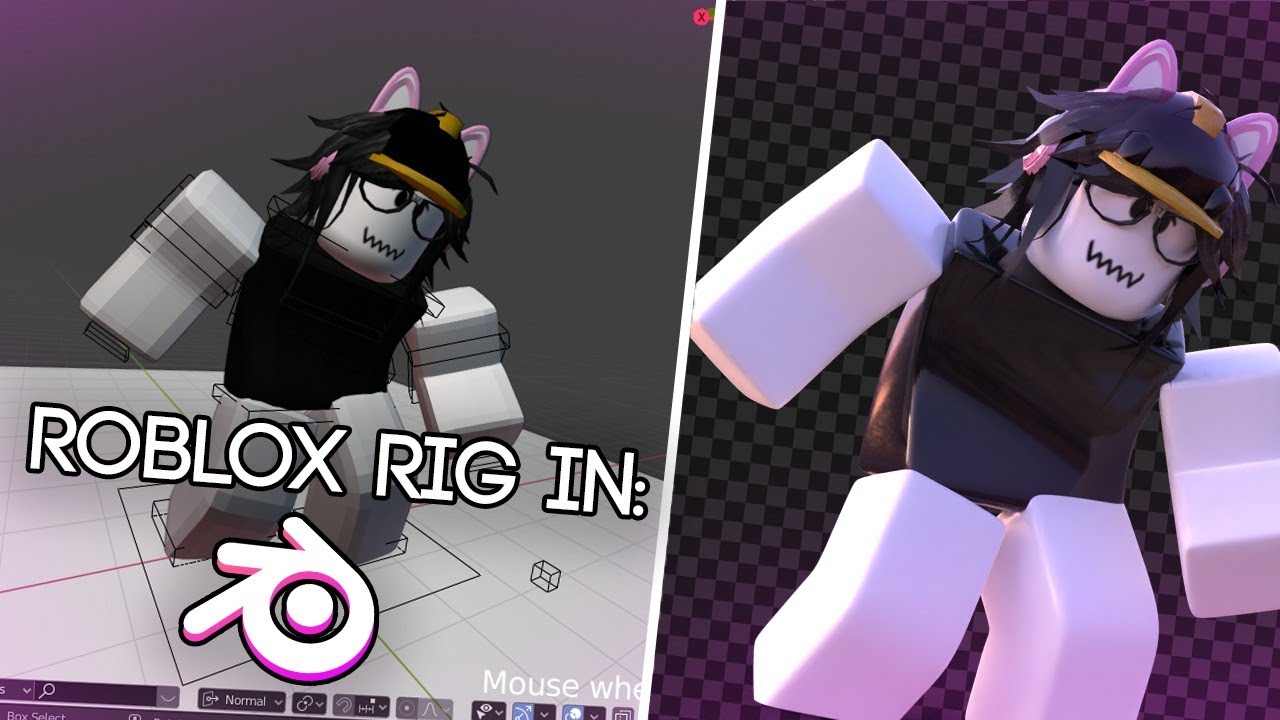
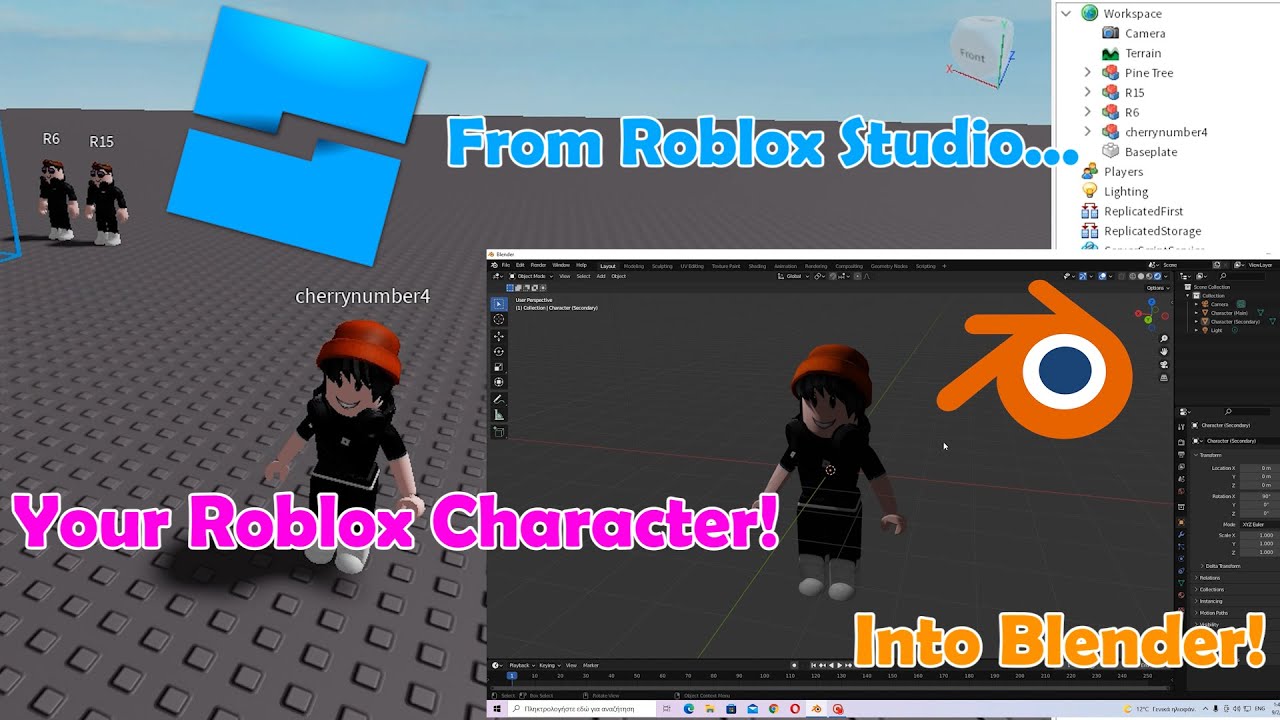
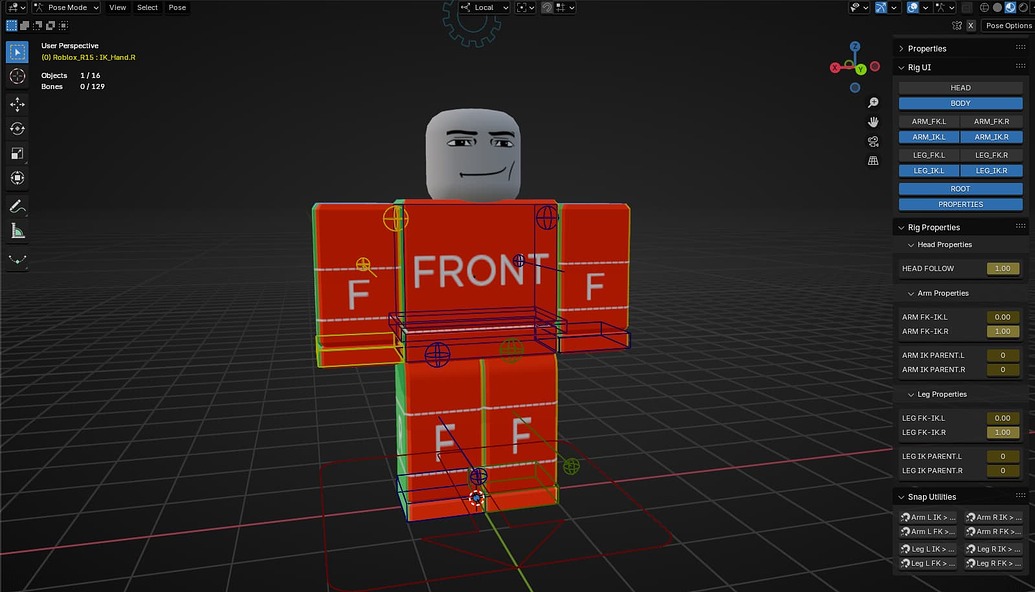

Roblox Rig Won T Work When I Rig It In Blender Art Design Support . How To Use Blender Rigs In Roblox Your Creator Guide . How To Use Blender Rigs In Roblox Your Creator Guide . How To Use Blender Rigs In Roblox Your Creator Guide 2 1035x592 . How To Use Blender Rigs In Roblox Your Creator Guide
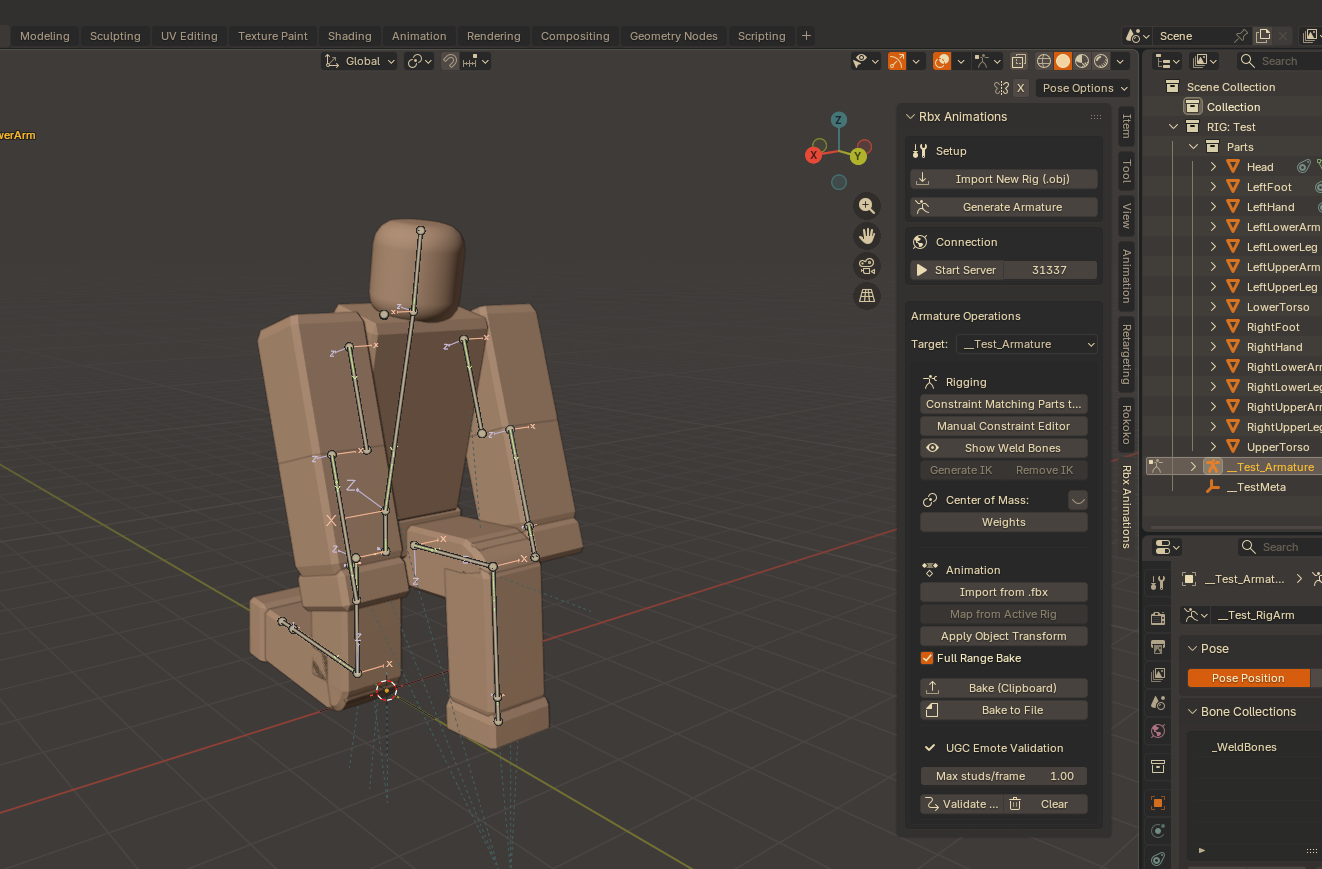


Blender Rig Exporter Animation Importer Page 94 Community Tutorials . Blender Rig Exporter Animation Importer Page 66 Community Tutorials . Blender Rig Roblox Blender For Roblox WBBV . Animating Two Rigs In Roblox Studio A Simple Guide . Roblox Avatar To Blender Your Easy Guide


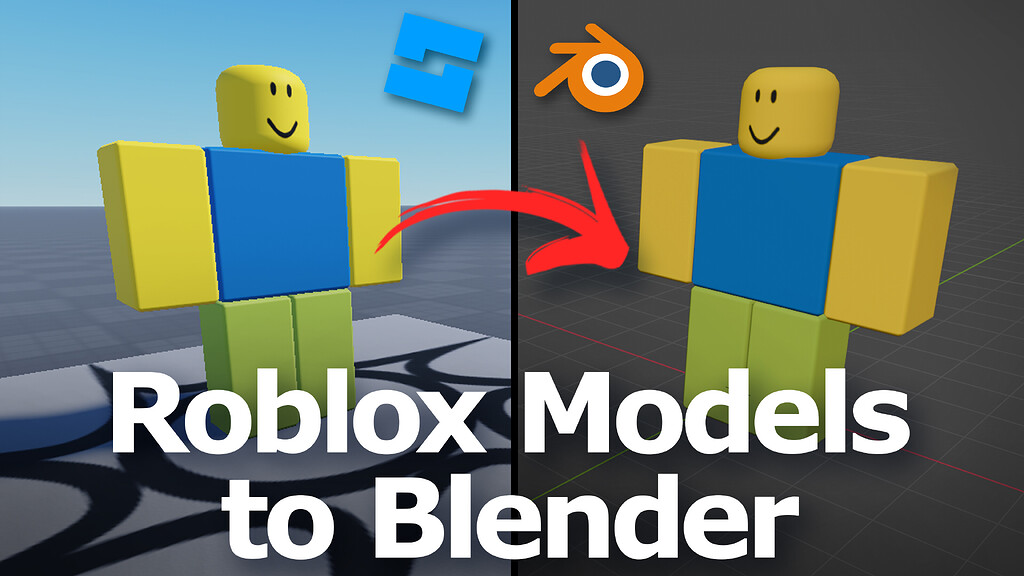
Import Roblox Rig Into Blender All Separated Parts YouTube . Roblox Avatar To Blender Your Easy Guide . Roblox R6 Rig Blender Download Roblox Dummy Download For Blender CLIDM . Roblox R15 Blender Roblox Blender Rigs TUJFIF . Roblox Rig Blender How To Export Blender Roblox AGAY 2 1024x576


How To Import Roblox Rig Blender YouTube . How To Rig A Blender Model Building Support Developer Forum Roblox . What Is Blender In Roblox At Nicole Webber Blog . R6 IK FK Blender Rig Page 2 Community Resources Developer Forum . Blender Rig Download Roblox At Louis Mitchell Blog
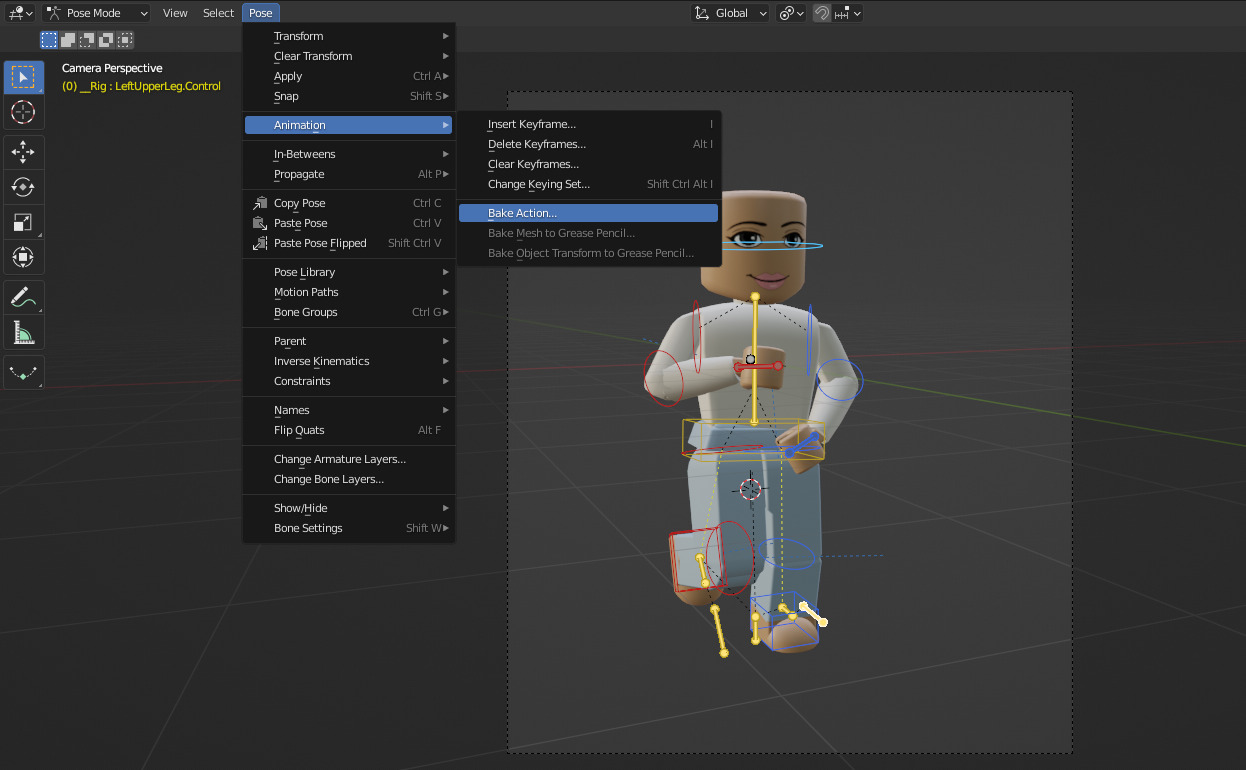
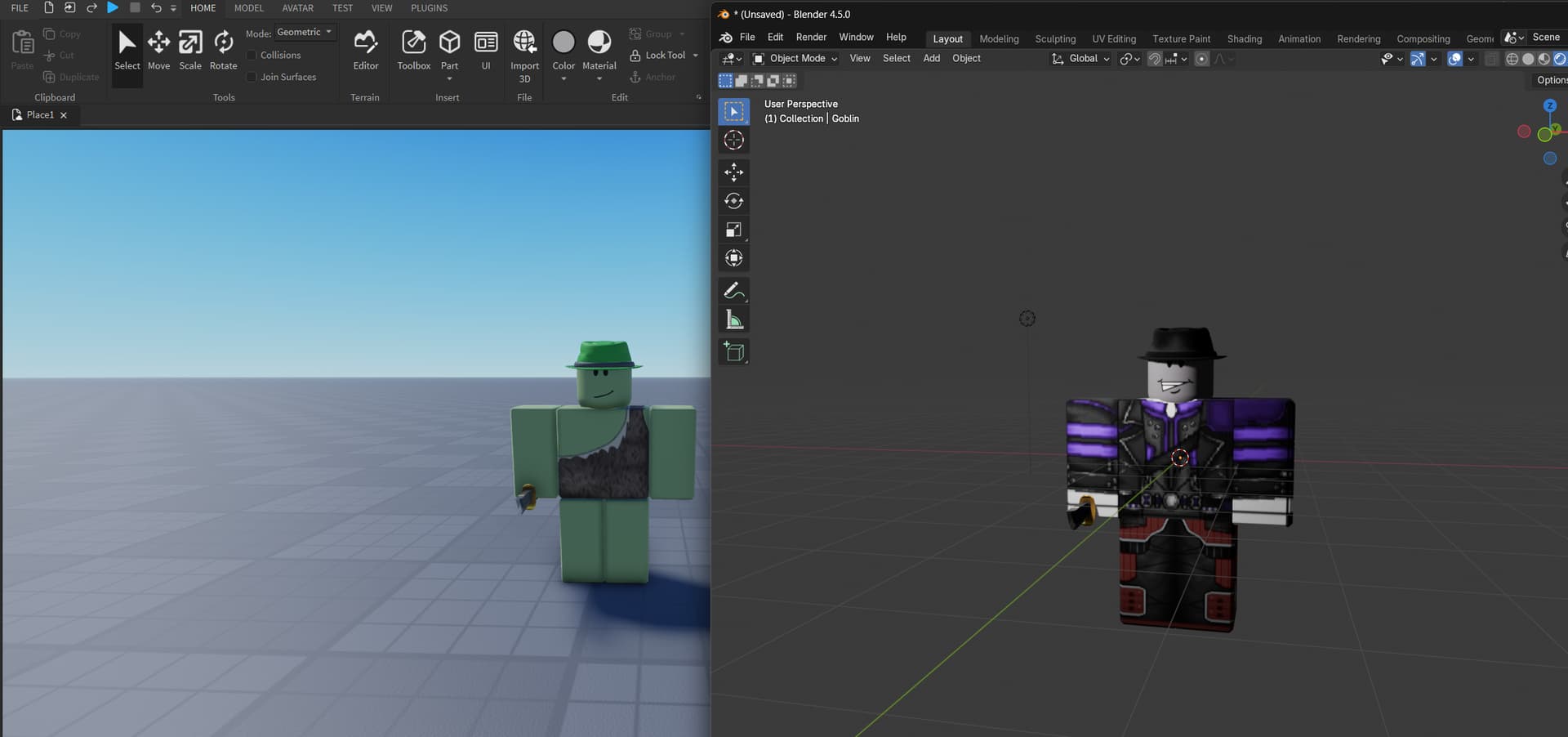


Issue With IK Constraints On Rig When Imported To Roblox Blender . Importing Rig From Roblox To Blender Completely Changes Textures . How To Animate Rigs In Blender For Roblox Studio Roblox Blender . Roblox IK R15 README Md At Main TK DZ Roblox IK R15 GitHub 236730077 8f32006a 1ee7 4619 89f5 . GitHub TK DZ Roblox IK R15 A Rig To Make Much Easy To Animate Using 236719011 2403b6a7 3227 40ed A91e
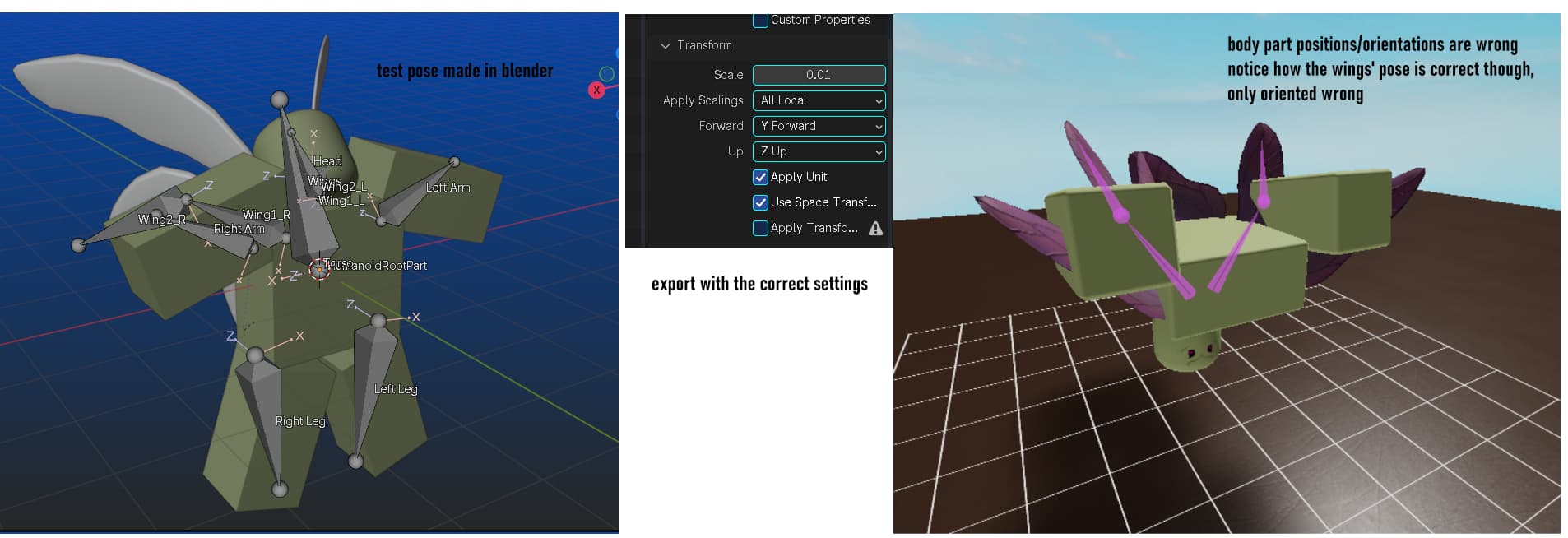


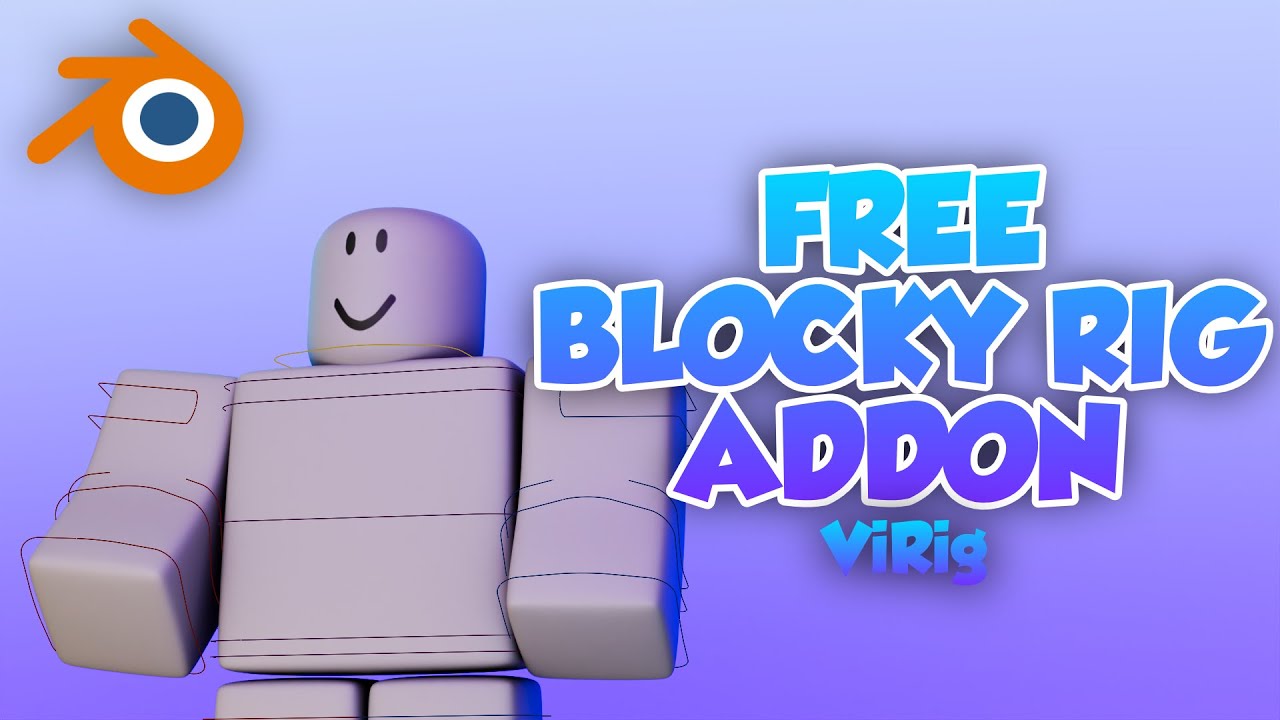

How Do I Export A Semi Custom Rig To Blender For Animating Art Design . Blender Rig Exporter Animation Importer Community Tutorials . Blender Rig Download Roblox At Louis Mitchell Blog . FREE ROBLOX BLOCKY RIG Blender ViRig YouTube . R15 Rig For Blender 4 0 FK IK Switching Community Resources

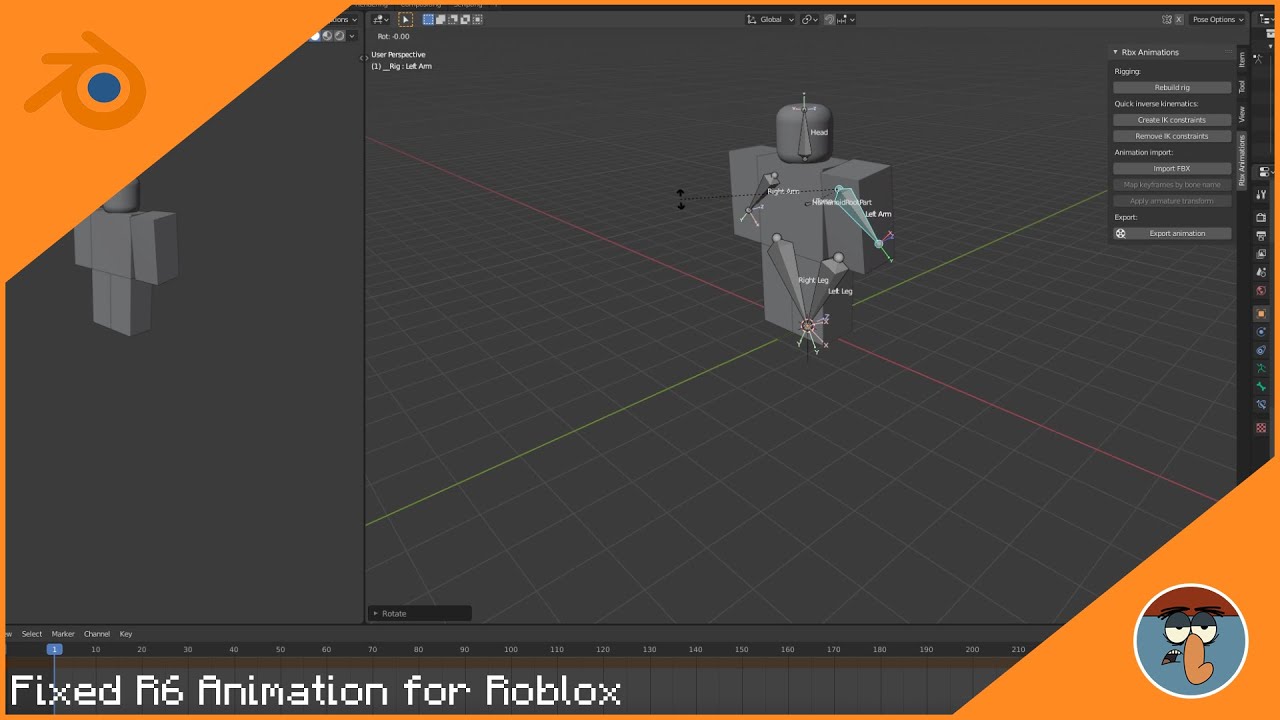


Rigging Your Roblox Character In Blender For GFX Community Tutorials . Animate Your Roblox Avatar In Blender . NEW FREE ROBLOX RIG ADDON Roblox Rigs Suite Blender YouTube . Animating Two Rigs In Roblox Studio A Simple Guide Hqdefault . EASILY Rig Layered Clothing In Blender Roblox GFX Tutorial YouTube